 🔑 Software keys sent via WhatsApp or E-mail within 24 hours (1 Day) ! ⏳ If not received, Contact us! ! 📬



 Recently Updated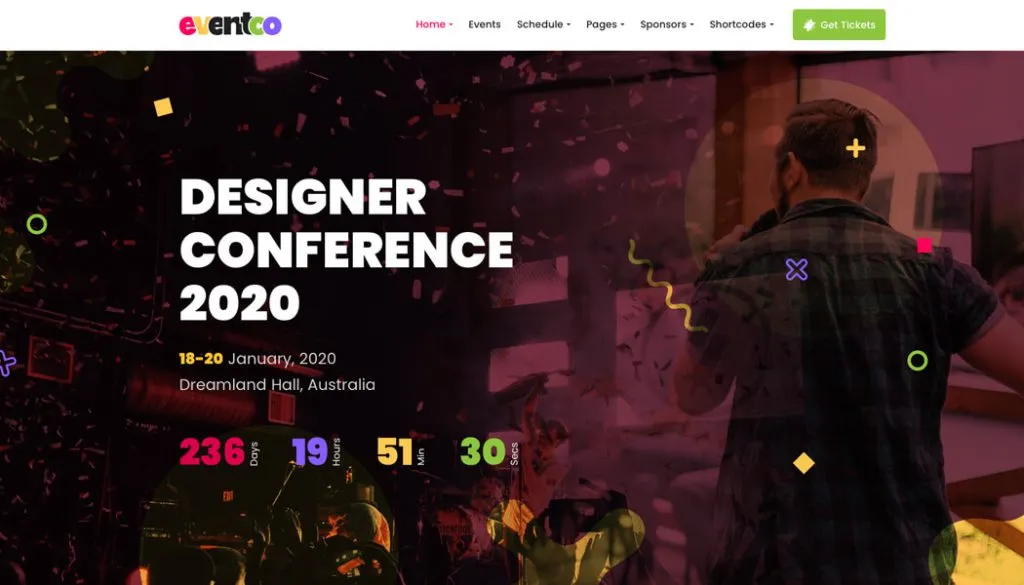

Eventco – Themeum
The very first thing you will need to do after you have your WordPress site up & running is to install the theme. To install your theme, you will need to login to your WordPress admin dashboard. Once you are there, you will see the theme installation option in the Appearance section.
You can download your theme file from your Themeum dashboard. Once you have downloaded your theme file, unzip it to find the necessary upload files. In the unzipped folder you will find a file named “eventco-core.zip” in the plugins folder. Upload it to your WordPress site using the theme uploader function from the Appearance menu.
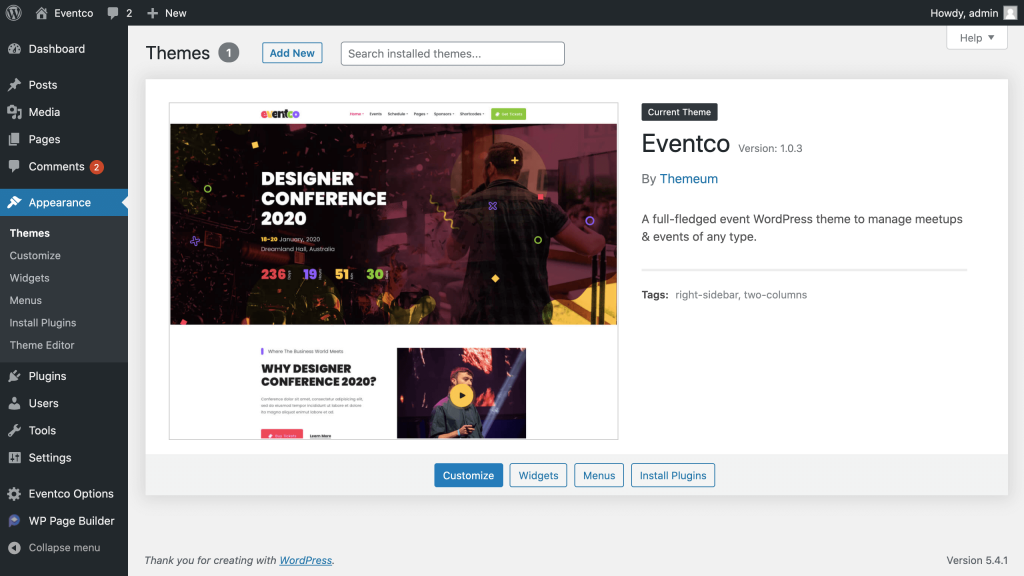
Once you are done uploading the theme file, now comes the part to install the necessary plugins. But don’t worry you won’t have to make a list to remember what to install. We have added a built-in plugin installer for your convenience.
Use the Built-in Plugin Installer
We know it is hard to remember what plugins you will need to make the most out of your online event site. So, once you have installed the Eventco theme, use the plugin installer to install all the required plugins.
You will find the built-in plugin installer in the Appearance section in the WordPress dashboard. If you click on it, you will see a list of the plugins that you will need to get the most out of your event site. From here you will be able to install all the necessary plugins.
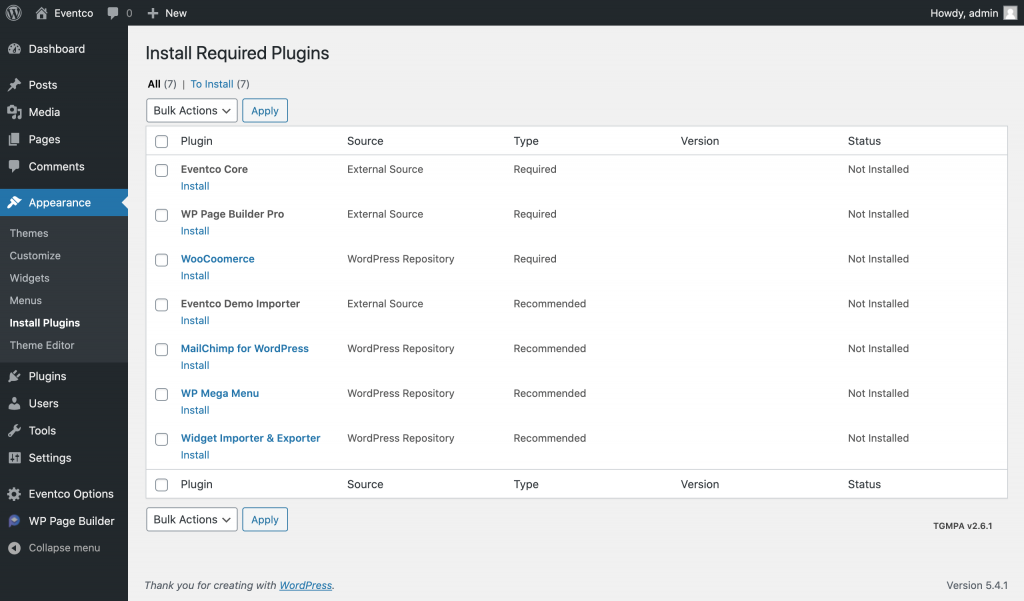
Now that you installed all the plugins, it is time to import the demo files to make your site look like a complete online event site.
Please note that the demo content is for testing purposes only!
Import the Available Demo Content
When you installed all the necessary plugins, among them there was the Eventco demo importer plugin. It gives you an easy way to get your site up and going with customizable demo content importing option.
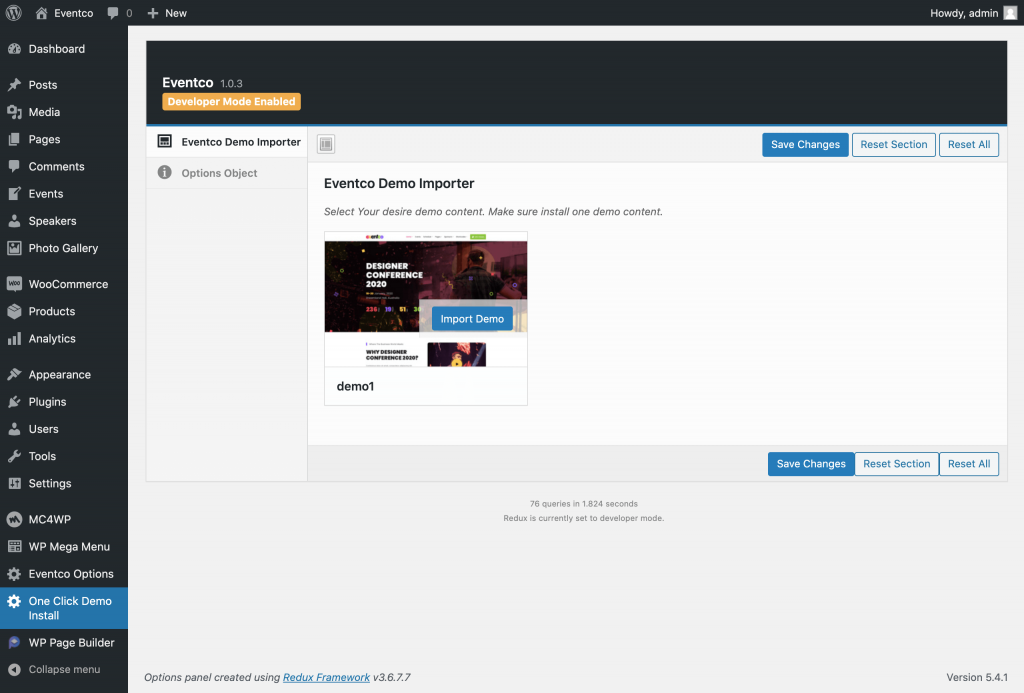
In your WordPress dashboard, you will find a One-Click Demo Install option from the Eventco demo importer plugin. When you click on it, you will find an option to import a demo with only the click of a button. Click on it to start the process. When the process is complete then you are ready to move on to the next step.
Note: The demo import process might take a few minutes, so you have to be a little patient. Once it is done, you will see a successful demo import notification.
Customize to Suit Your Needs
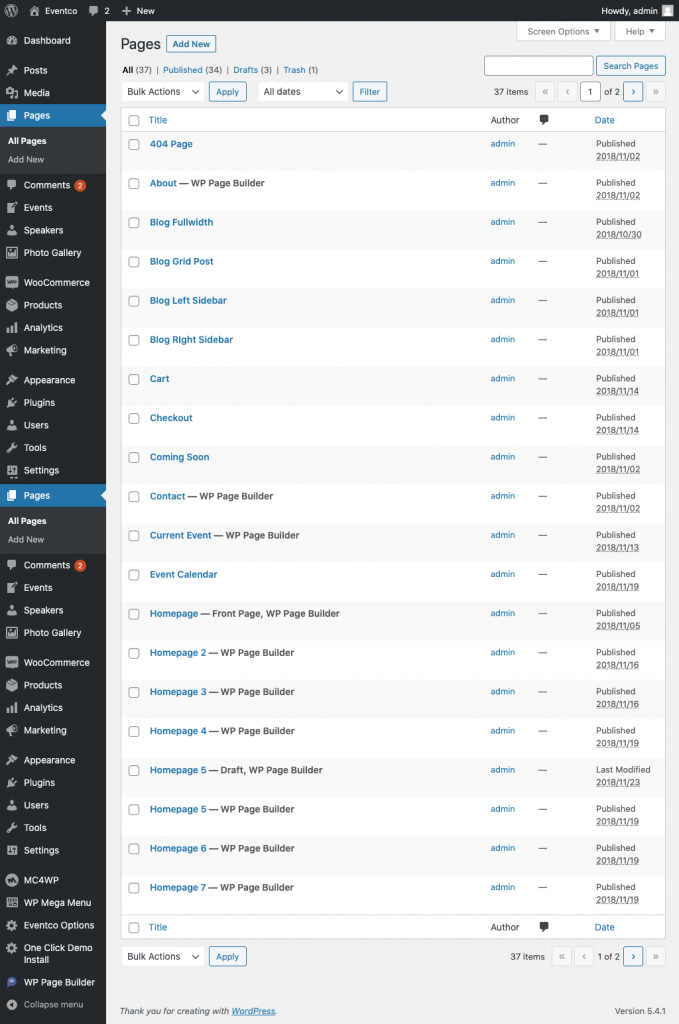
Now that you have imported the demo, you will see how your online event site will look like. You can now see an overview of all the pages and content that will be shown on your site. Everything is customizable in this imported demo content.
P.S Again, please note that the demo content is for testing purposes only. As all imported contents are customizable you can change it to see what suits your needs.
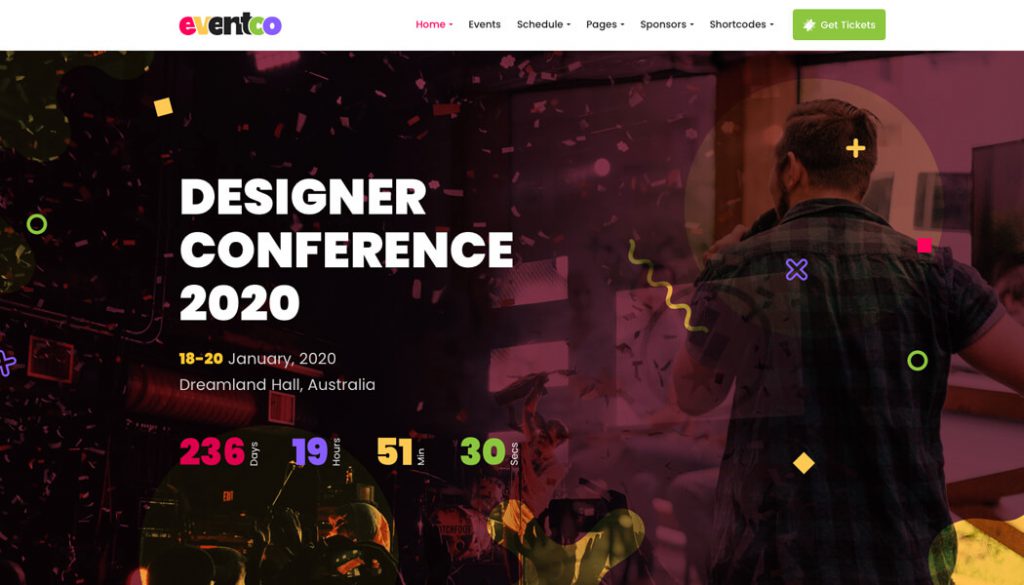
Frontend View
This is how the frontend of your site will look, once you import the demo. You will see that it is really easy to create a professional event site with an easy step by step guide using WordPress & the necessary tools.
You can check out the full demo from here.
Want to Stream Your Event Live on the Site?
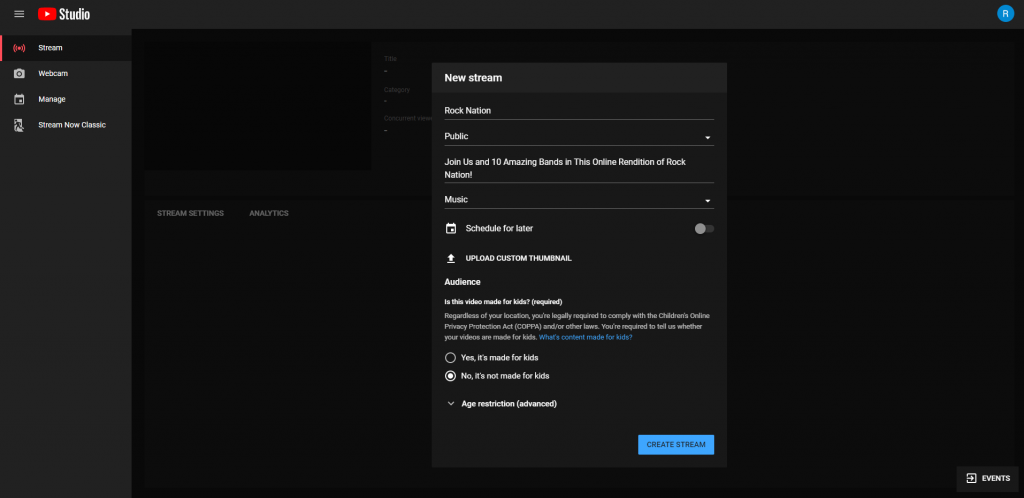
First, you need a YouTube account. Once you are logged in you will notice a button called “Go Live” on the top-right corner. If you click on it, you’ll be redirected to YouTube’s live stream setup. Give the live video a title and set it to Unlisted if you do not want people to find it without going to your website. You can also schedule for later if you’re setting it up beforehand (Always a good idea).
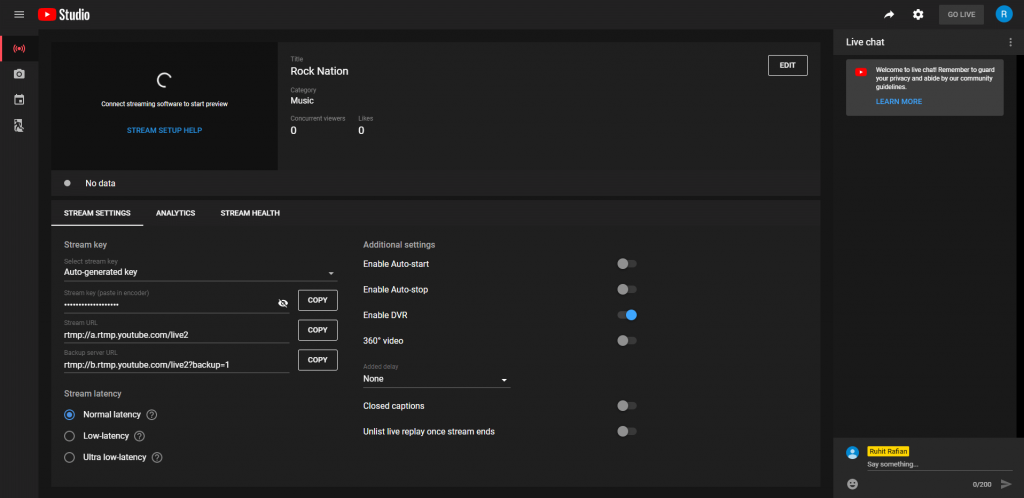
After clicking on “Create Stream” you will be able to change more of the stream settings. Copy the “Stream Key” into a protected document for your streaming app to use. Using Normal Latency is ideal for nearly all using cases, so that’s the perfect option. Enable DVR so visitors can seek/ pause / control the video.
Check out another article we did on how you can host an interactive live stream.
Embed Live Video on a WordPress Page or Post
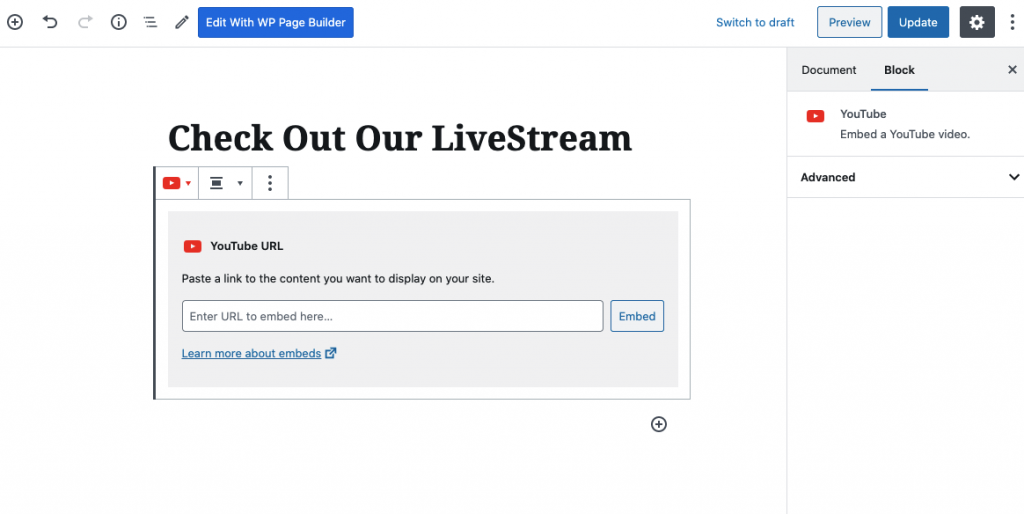
When you have started broadcasting using a streaming program such as OBS, you will see the Go Live option on YouTube Studio. There’ll be an option to share the link after you turn it on. Copy the URL and go to the page or post where you want this video to be viewed. Take a YouTube embed block and place the link there, and you’re done!


