🔑 Software keys sent via WhatsApp or E-mail within 24 hours (1 Day) ! ⏳ If not received, Contact us! ! 📬



 Recently Updated

Flexible Checkout Fields PRO WooCommerce
Key Benefits of the WooCommerce Checkout Field Editor
It is absolutely essential to be able to manage WooCommerce checkout fields to make the checkout process as easy as possible and remove distractions.
Best Looking Checkout Fields Plugin
Flexible Checkout Fields (WooCommerce checkout plugin) beautifully integrates with the WordPress dashboard.
Fields Order
Just drag&drop to reorder fields. You can reorder WooCommerce built-in checkout fields as well as custom fields that you add yourself.
Labels and Placeholders
Want to change the Company name to just Company or Your Awesome Company? Just edit the label and it will instantly appear in the checkout.
Show or Hide Fields
You do not need a customer’s phone number or second-line address. Just hide these fields from the checkout and you’re good to go.
Required or Optional Fields
Easily manage which fields should be required and which are optional. Just click a required checkbox in the field settings and make a field required or optional.
Custom CSS Class
Add some style to your fields. By adding a custom class to each field you can then uniquely style it in your theme’s stylesheet.
Plugin highlights
DRAG
Beautiful checkout form
Create a beautiful form in literally minutes.
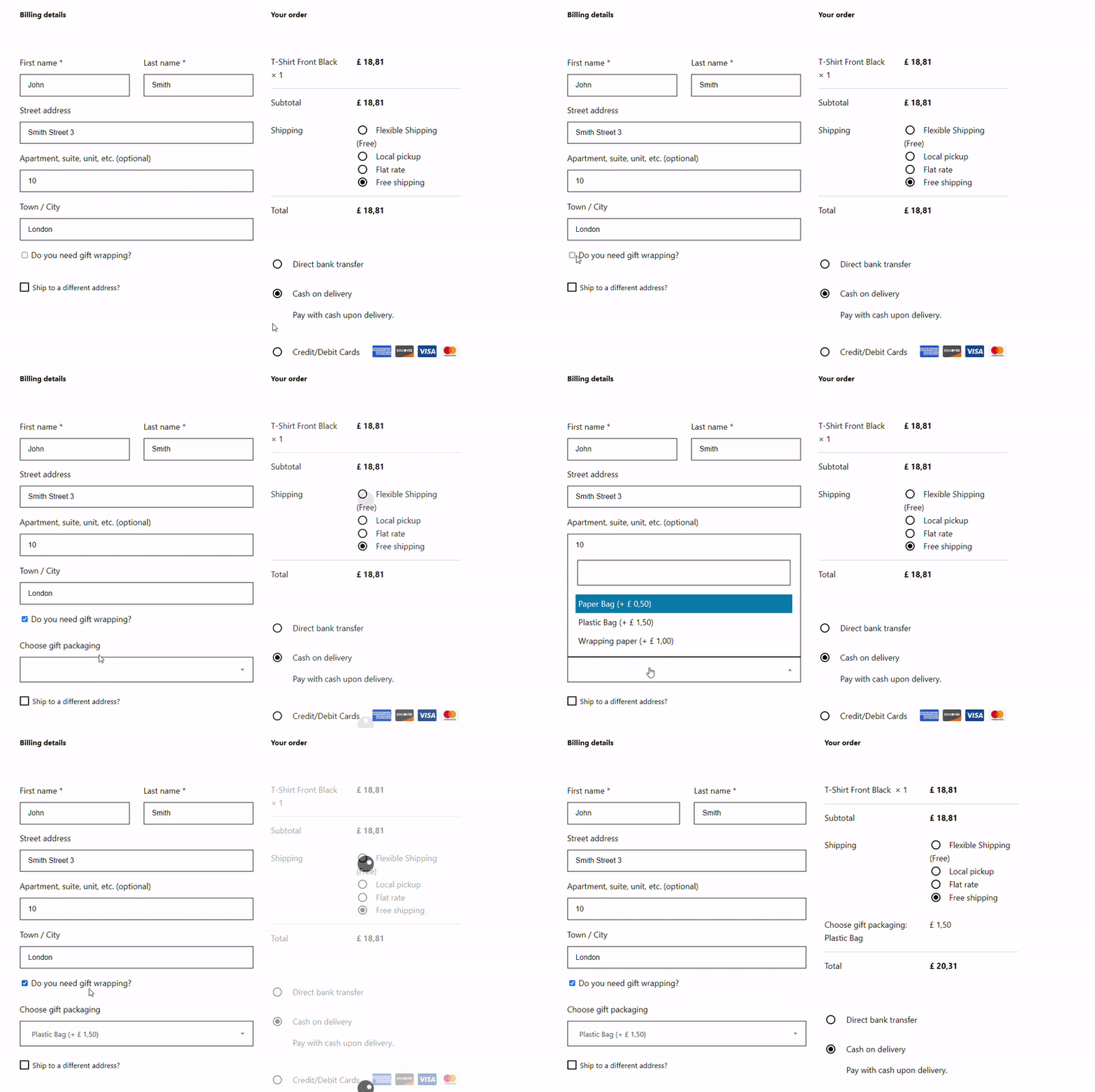
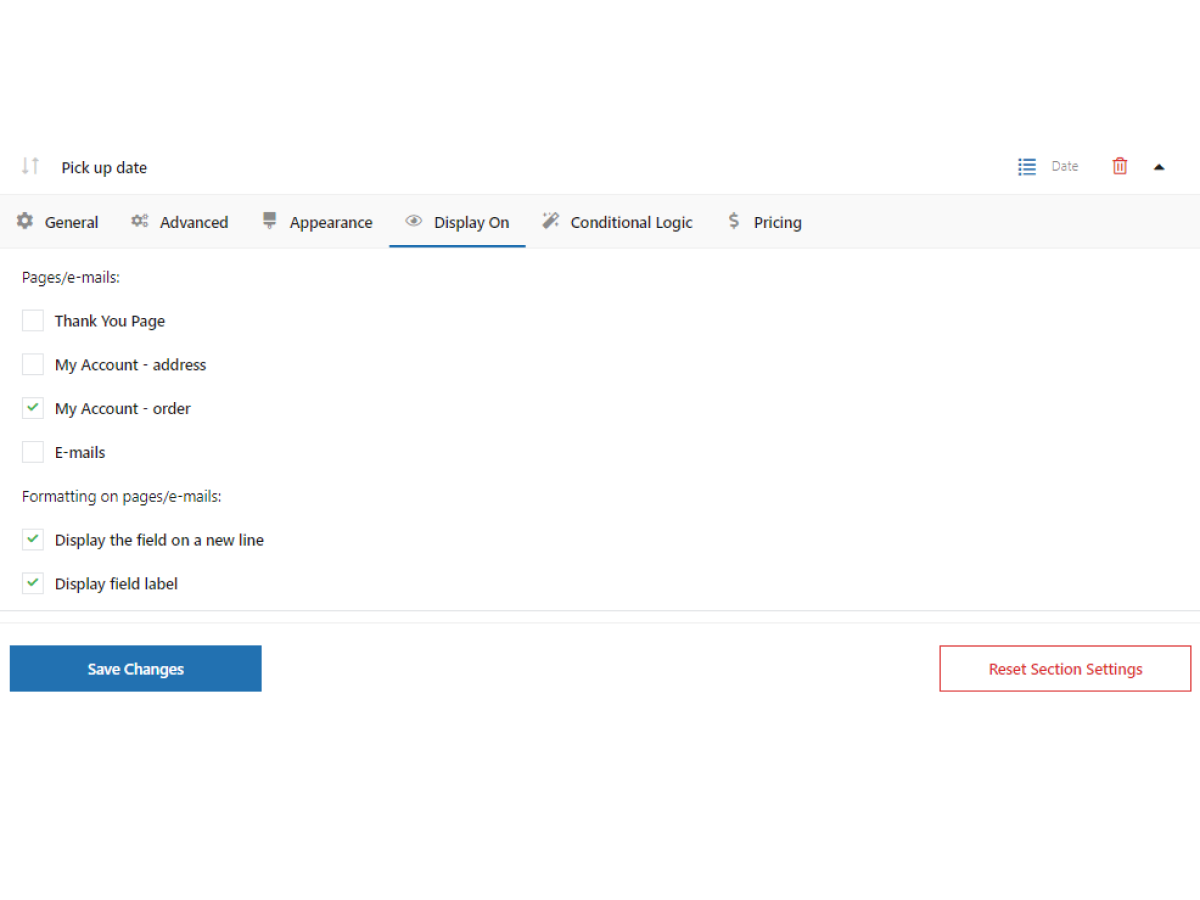
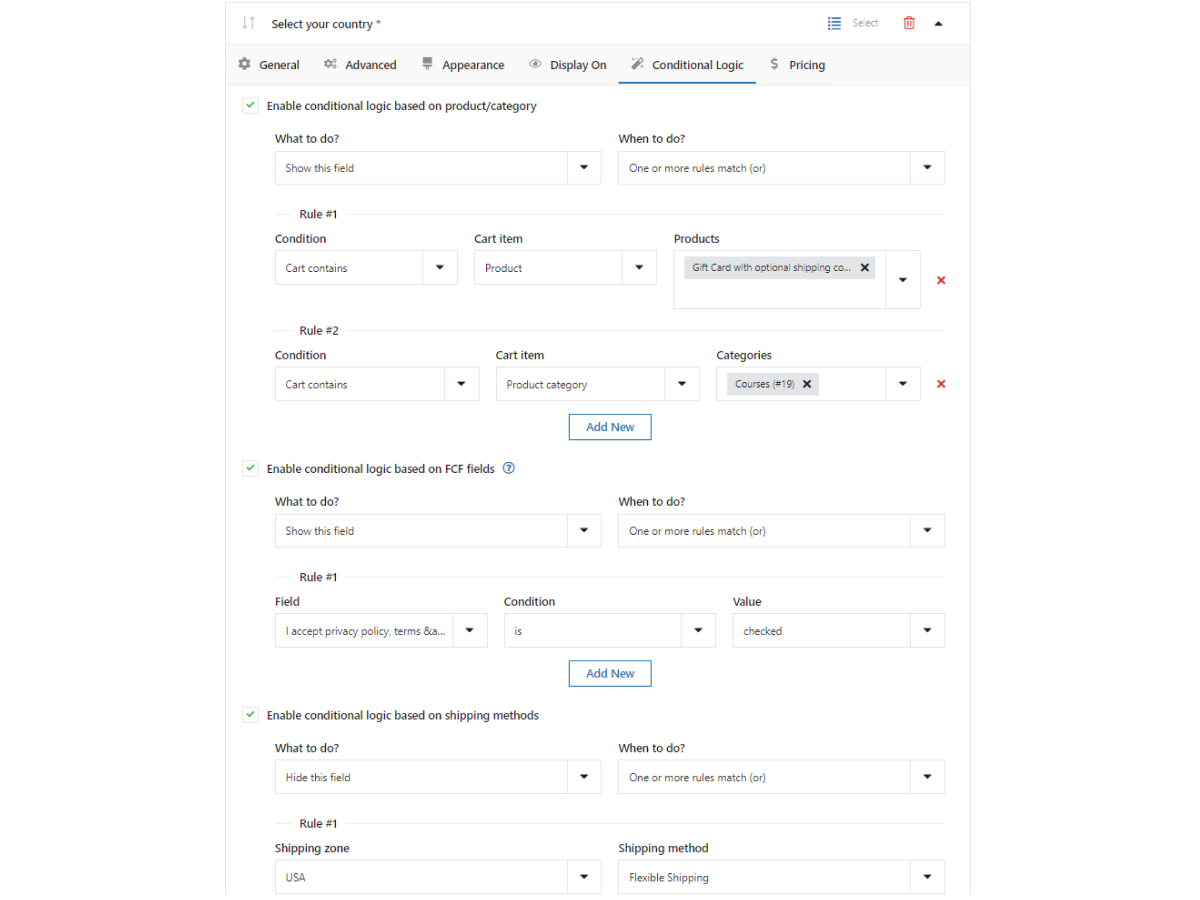
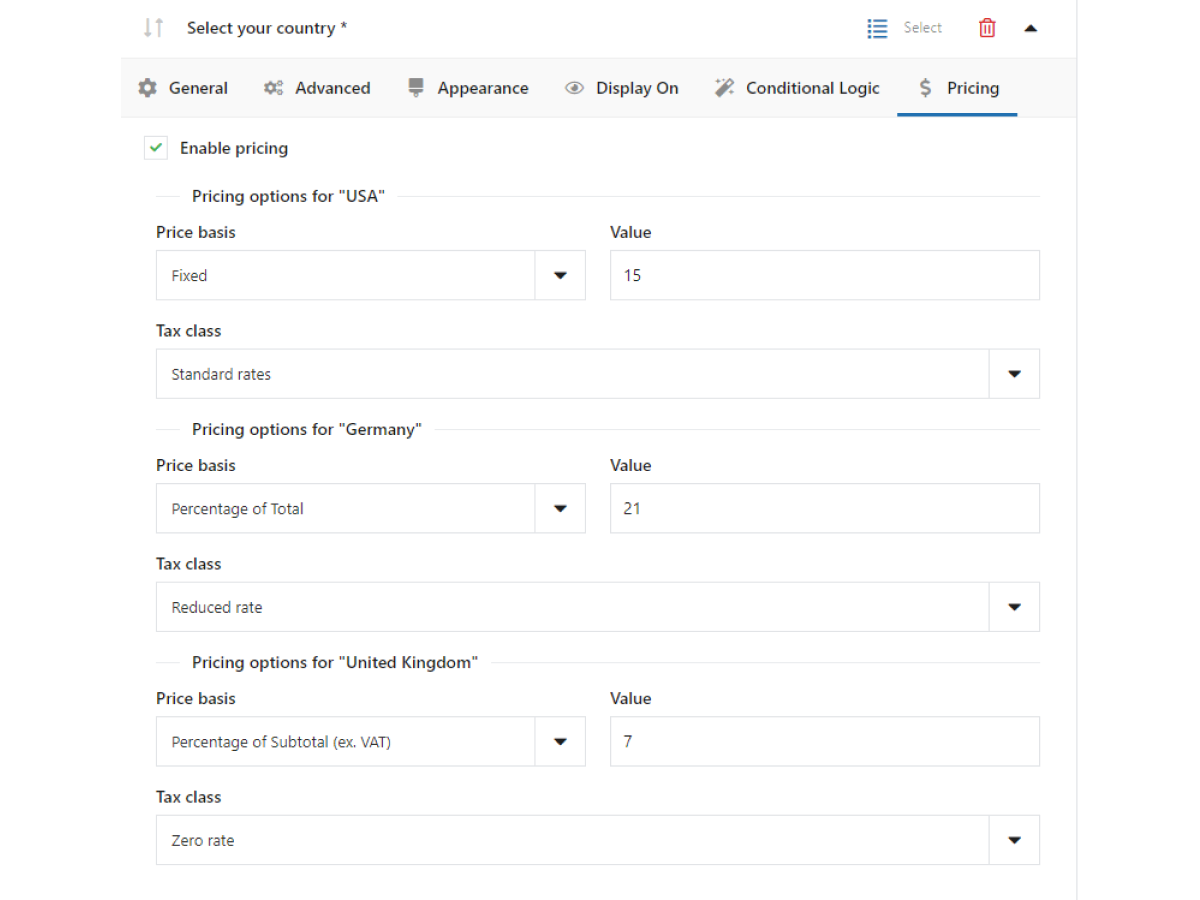
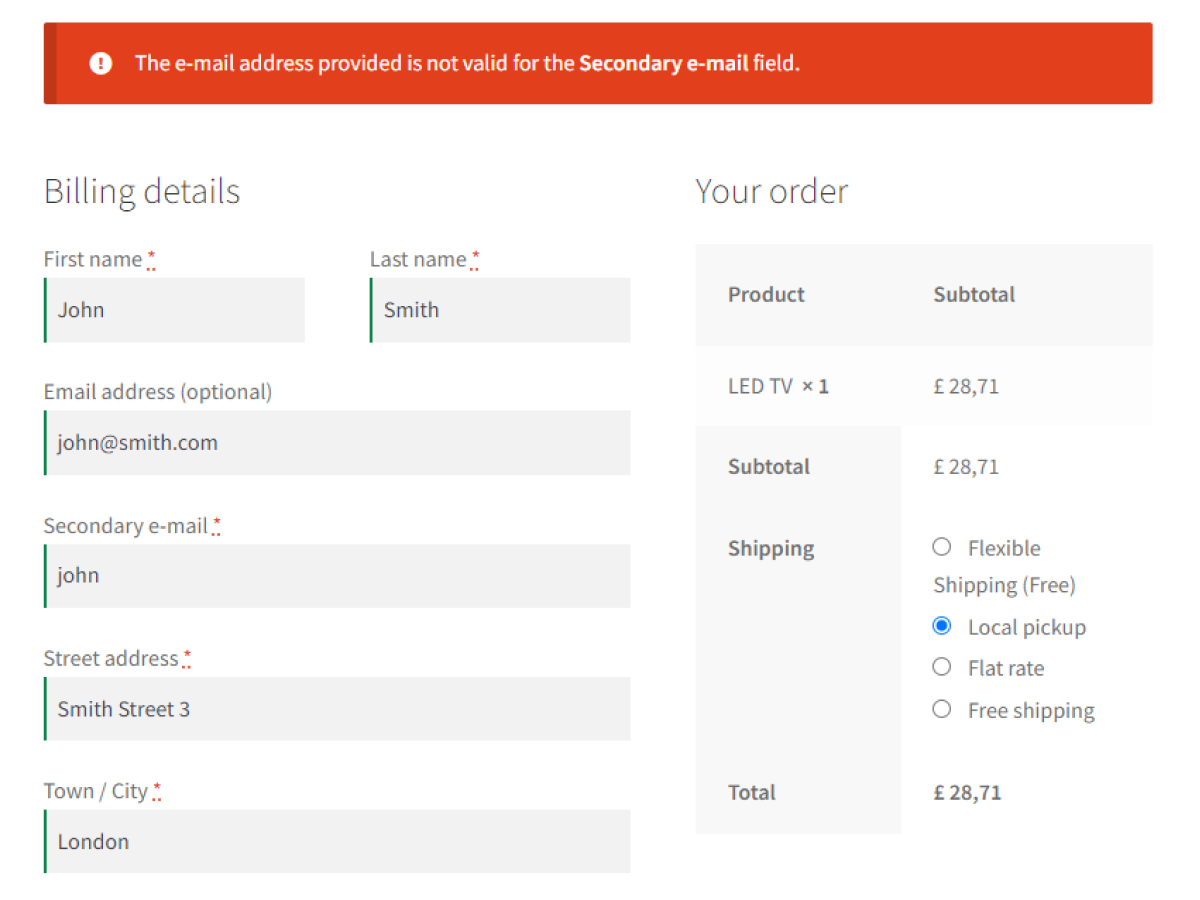
What’s more, the form can be not only beautiful but also functional. Add conditional logic, assign a price to a field, change the appearance of the field, and decide in which section and on which page it should appear. You have plenty of options.
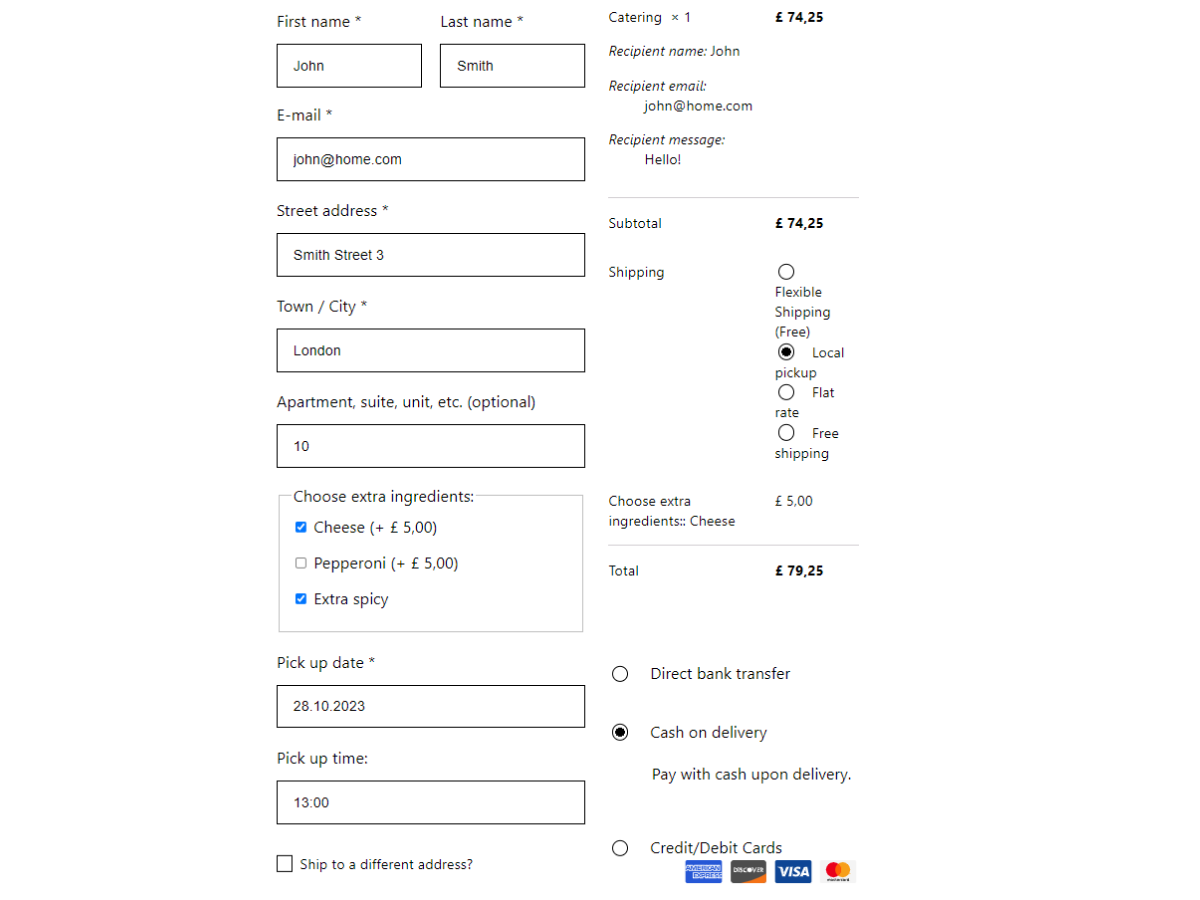
Use a Checkout Field Editor for WooCommerce
Add new custom fields to WooCommerce checkout. Our WooCommerce Checkout Field Editor supports 22 field types to suit all your needs.
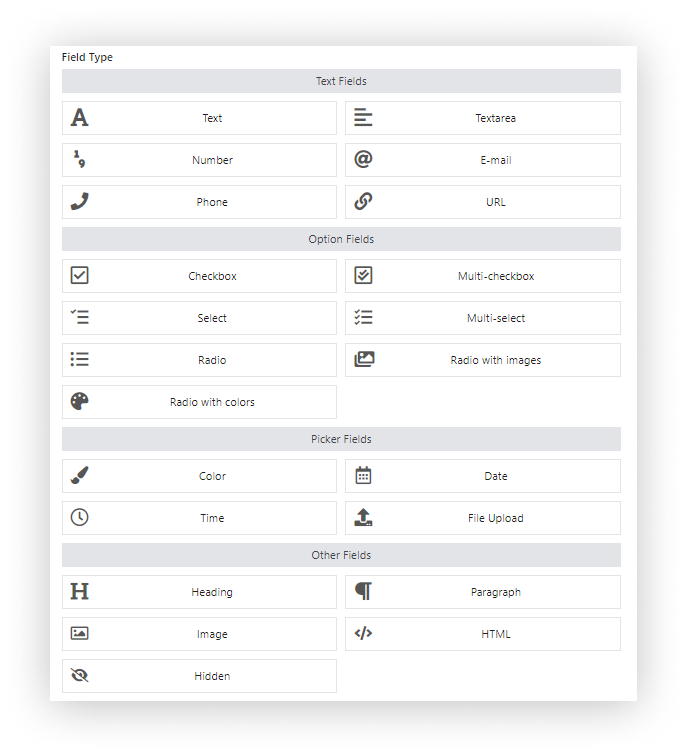
Make the checkout form more appealing by adding customizable additional fields.
Choose from text fields, option fields, picker fields or add a heading, paragraph, image, HTML, or a hidden field.
You have as many as 22 different fields to choose from, which will fully satisfy even the most demanding needs of any store.
Custom Field Sections for your WooCommerce custom checkout page
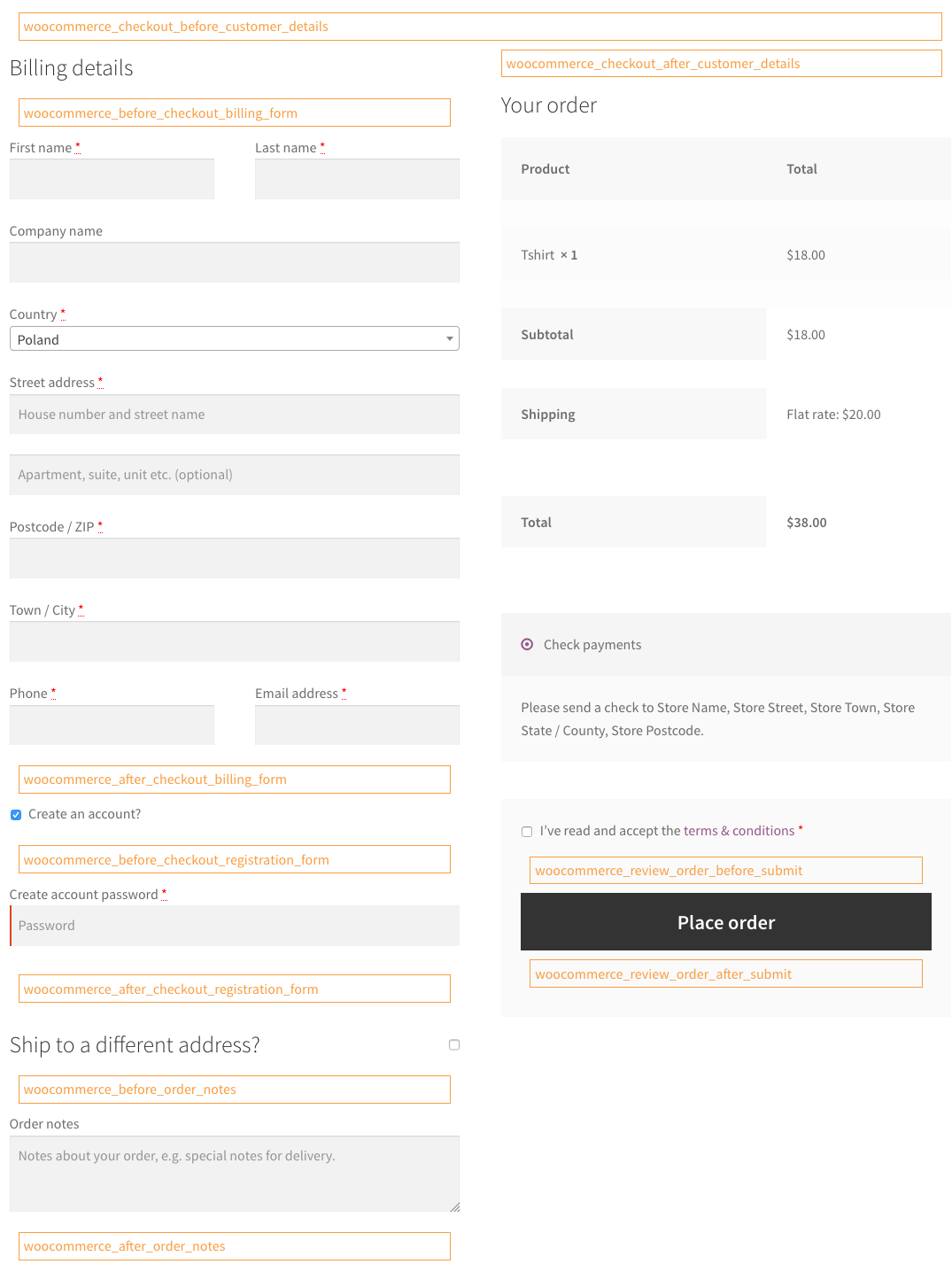
Billing, Shipping, or Order sections not enough? Now you can add fields to 17 other checkout sections.
Below you will find all custom sections for adding your custom fields. Click the screenshot to see these sections on the WooCommerce checkout page.
- Before Customer Details –
woocommerce_checkout_before_customer_details - Before Billing Heading Fields –
woocommerce_checkout_billing - Before Billing Form Fields –
woocommerce_before_checkout_billing_form - After Billing Form Fields –
woocommerce_after_checkout_billing_form - Before Registration Form Fields –
woocommerce_before_checkout_registration_form - After Registration Form Fields –
woocommerce_after_checkout_registration_form - Before Shipping Heading Fields –
woocommerce_checkout_shipping - Before Shipping Form Fields –
woocommerce_before_checkout_shipping_form - After Shipping Form Fields –
woocommerce_after_checkout_shipping_form - Before Order Notes Fields –
woocommerce_before_order_notes - After Customer Details Fields –
woocommerce_checkout_after_customer_details - After Order Notes Fields –
woocommerce_after_order_notes - Before Payment Fields –
woocommerce_review_order_before_payment - After Submit Fields –
woocommerce_review_order_after_submit - After Payment Fields –
woocommerce_review_order_after_payment - After Order Review Fields –
woocommerce_checkout_after_order_review - Before Submit Fields –
woocommerce_review_order_before_submit
Learn more about WooCommerce checkout sections →