 🔑 Software keys sent via WhatsApp or E-mail within 24 hours (1 Day) ! ⏳ If not received, Contact us! ! 📬



 Recently Updated

Gravity Perks – Gravity Forms Google Sheets: Automatically send and sync Gravity Forms data with Google Sheets — and unlock new possibilities for your data.
What does Gravity Forms Google Sheets do?
What does Gravity Forms Google Sheets do?
This plugin integrates Google Sheets directly with Gravity Forms to automatically pass entry values to Google Sheets. This is done without requiring any additional software or monthly fees, and with an emphasis on security and high performance.
Additionally, your Google Sheet can be automatically synced with your Gravity Forms entries, keeping your data accurate at all times.
Features
- Send Gravity Forms entry data directly to Google Sheets.
Unlock the vast power of Google Sheets for all of your Gravity Forms entry data. - Keep your spreadsheet and entry data perfectly in sync.
Edits to your entries can automatically sync to your Google Sheets. Rows for trashed or spammed entries are automatically removed. - Create new or map to existing spreadsheets.
Send data to existing spreadsheets or create a completely new spreadsheet specific to your form. - Fetch data from Google Sheets and use it in your forms.
Populate your forms with Google Sheets data when paired with Gravity Forms Populate Anything. - Security first.
Uses Google’s secure authentication method to ensure only you have access to your Google files and data. - Money-saving, value packed.
No monthly fees or transfer limits. Just the unlimited power of Google Sheets. - Automatic updates.
Get updates and the latest features right in your dashboard. - Legendary support.
We’re here to help! And we mean it.
Why Google Sheets?
- Easy organization and analysis: Google Sheets allows you to easily organize and analyze your form data. Use various Google Sheets functions and features, like formulas, pivot tables, and charts, to analyze and visualize your data in meaningful ways.
- Collaboration: Google Sheets allows multiple users to access and edit the same sheet, making it easy for teams to collaborate on data analysis and decision making.
- Accessibility: Google Sheets can be accessed from any device with an internet connection (and has an offline mode too). Teams can access and work on form data from anywhere, using an application they’re already familiar with.
- Security: Google Sheets offers industry standard security measures to protect your data, including access controls, activity logging, and data encryption.
- Integration with other Google tools: Google Sheets can be quickly integrated with other Google tools, such as Looker Studio (formerly Data Studio) and BigQuery, allowing you to create a seamless workflow for collecting and analyzing data.
Documentation
- Terminology
- How do I enable this functionality?
- Feature Details
- Error Handling
- Google Sheet Security
- Integrations
- FAQ
- Does GP Google Sheets support files in shared drives?
- How can I send QR codes to Google Sheets?
- Can I rename or reorder columns?
- Is GP Google Sheets asynchronous?
- Can GP Google Sheets apply colors and formatting to my Google Sheet?
- Why can’t I select a spreadsheet when setting up GP Google Sheets?
- Why doesn’t the date format in my Date field match the date format in Google Sheets?
- Known Limitations
- Translations
- Hooks
Terminology
Before we get started, let’s clarify a few important words we’ll use throughout this documentation.
- Google Sheets: Refers to the Google product that allows you to create and manage spreadsheets.
- Google Sheet / spreadsheet: Refers to a collection of sheets.
- sheet: Refers to a specific sheet within a spreadsheet.
- GPGS: Any acronym for this plugin, GP Google Sheets.
How do I enable this functionality?
After installing and activating GF Google Sheets, you can create Google Sheets feeds in any form. Use these feeds to pass data from your forms to Google Sheets.
The following instructions will show you how to authenticate using Google OAuth and create your first Google Sheets feed.
Connect to Google Sheets
Before you can send Gravity Forms to Google Sheets, you need to connect the GP Google Sheets plugin to your Google account. This process requires just a few clicks and is very secure.
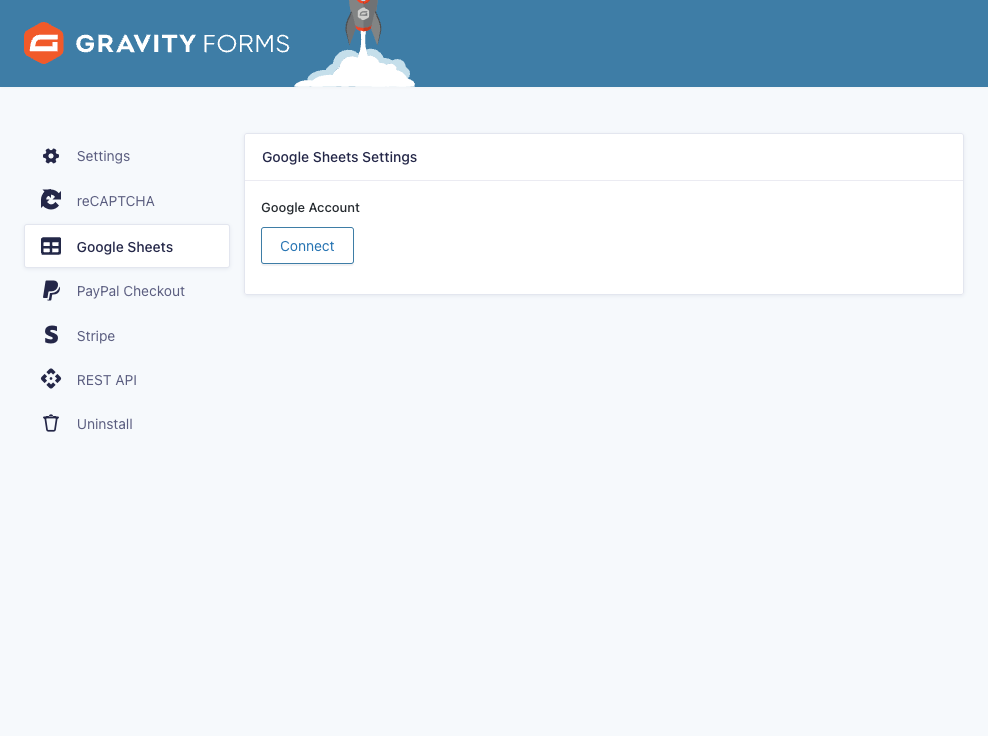 |
Navigate to the plugin settings and click Connect. |
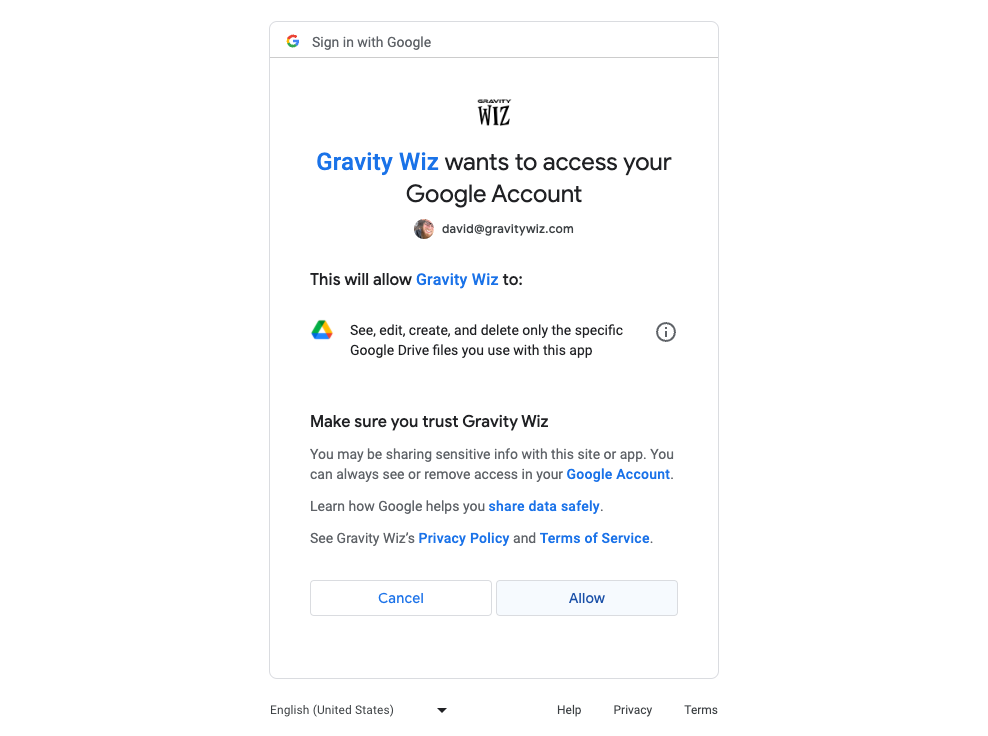 |
Select your desired Google account and then click Allow to grant GP Google Sheets permission to connect to your Google account. |
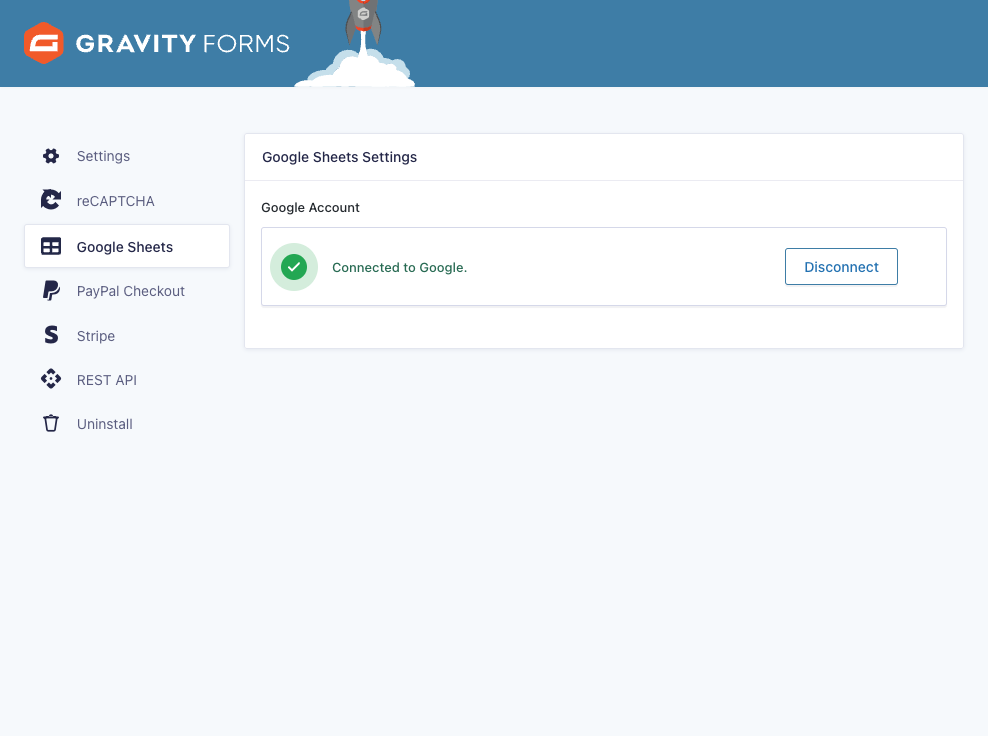 |
Done! You’ve now connected your Google account. 🙌 |
Unlike most perks, GP Google Sheets does require an active Gravity Perks license to function, at least for the initial authentication with Google. After your Google account is connected, an active license is not required unless you need to re-authenticate your connection.
Create a Feed
Once authenticated, you can add Google Sheets feeds to any form where you want to pass values from Gravity Forms to a sheet.
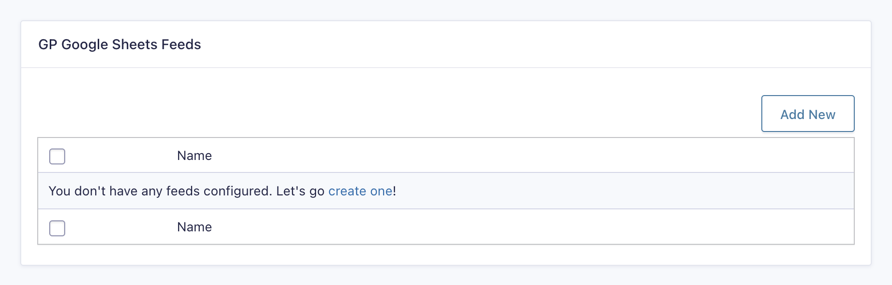 |
Add a new Google Sheets feed to your form. |
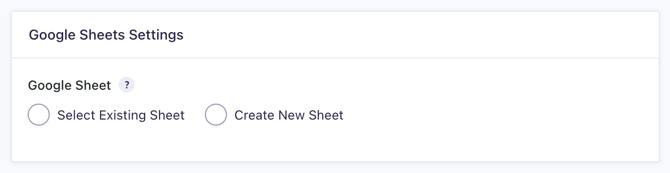 |
Select an existing spreadsheet or create a new one. |
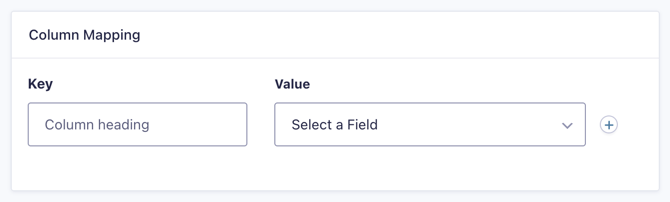 |
Map your form’s fields to columns in the spreadsheet. |
Feature Details
Feed Settings
When configuring GP Google Sheets feeds, you will be presented with the following settings.

After you have either created a new Google Sheet or selected an existing, the settings will then change to the following.
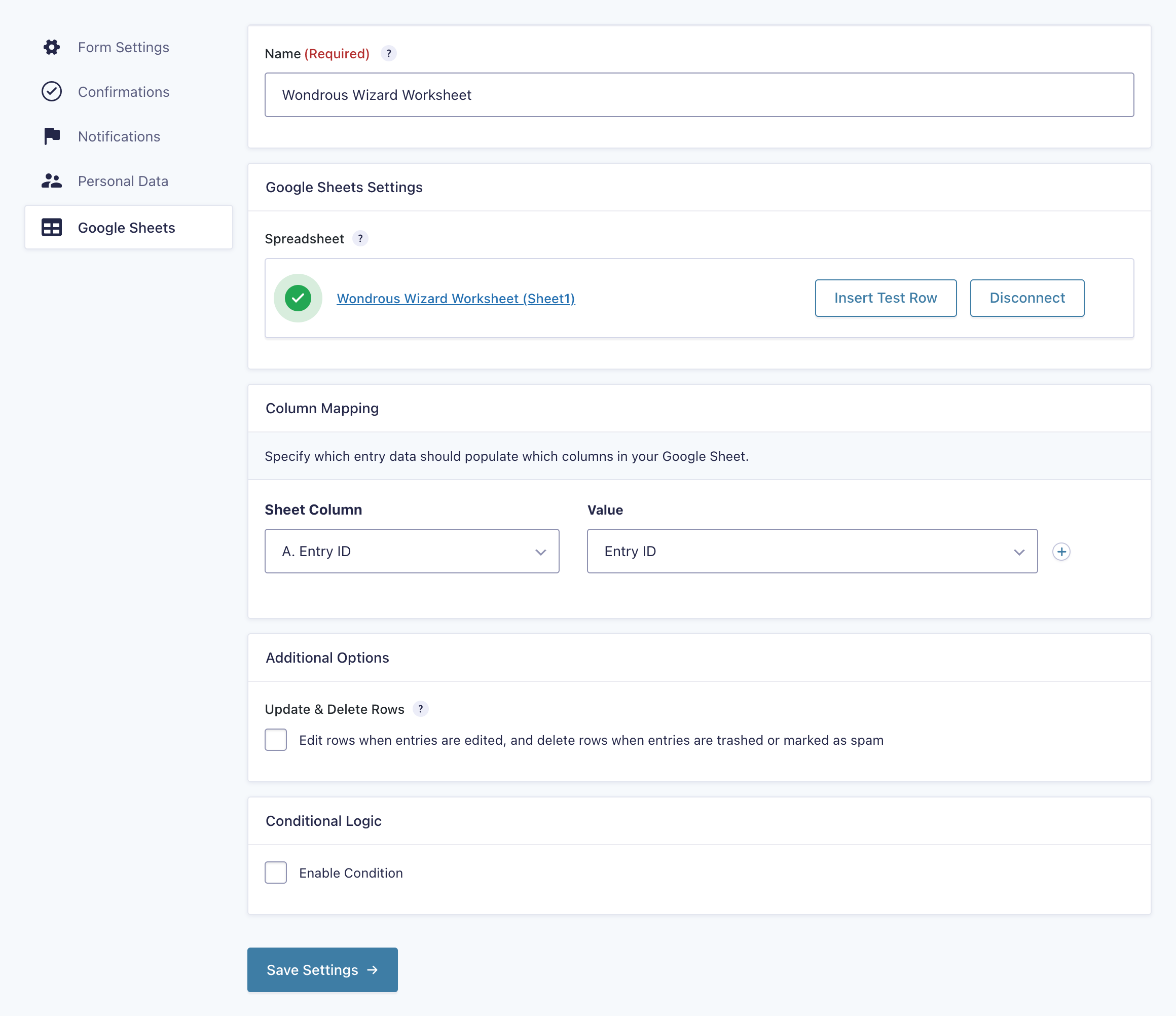
Google Sheets Settings
Use this setting to select an existing Google Sheet or create a new one.
Select Existing Sheet
If you have an existing spreadsheet already in Google Sheets, you can select it using “Select Existing Sheet.”
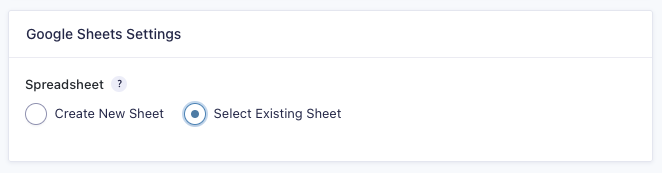
When clicking “Select Existing Sheet,” a new tab will open with a secure Google Picker to add the selected file to the list of files that your GP Google Sheets token is allowed to read and write to.
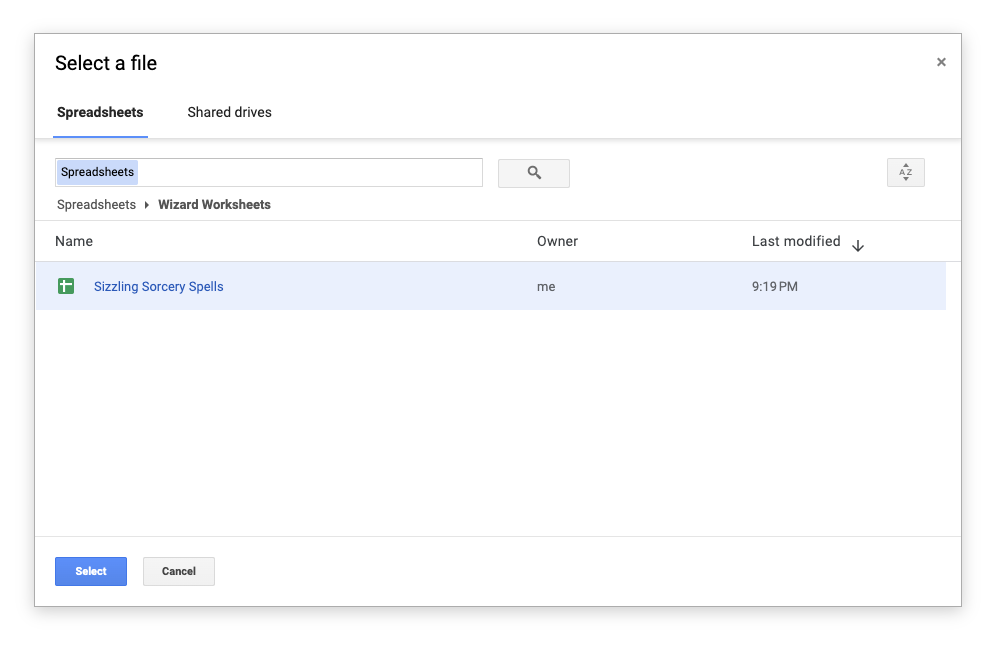
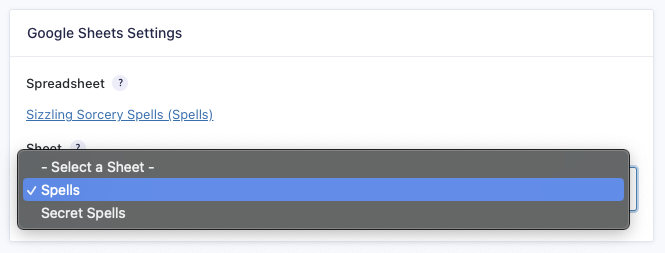
After selecting the Google Sheet, you will be presented with the option to select which sheet (or “tab”) to use in the spreadsheet.
Create New Sheet
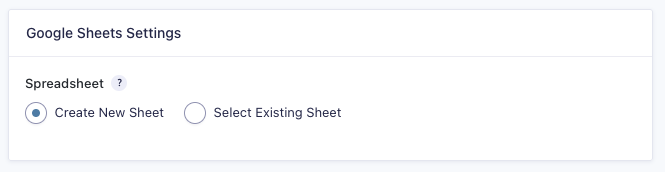
Selecting “Create New Sheet” will create a new Google Sheet in the root of your Google Drive with the name of the feed.
The column headings will match the Keys entered in the Column Mapping section.
After Connection
Once a sheet is selected or created, you will see an option to Disconnect the sheet as well as a handy Insert Test Row button to confirm that everything is working as expected.
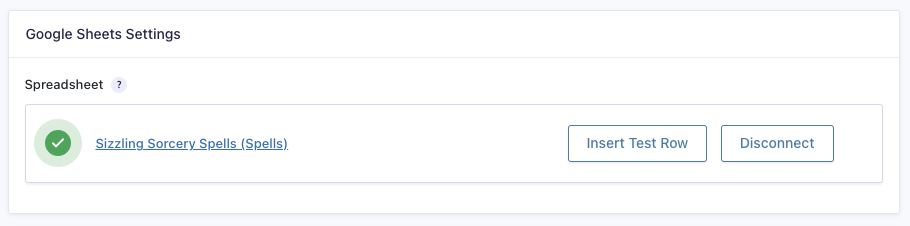
Not only does disconnecting the spreadsheet allow you to connect to a different sheet, it can also be useful for troubleshooting.
Column Mapping
Use this section to map your form fields to columns in your Google Sheet. For a new spreadsheet, you can write in any column names you’d like. For existing spreadsheets, you can select existing columns or add additional columns by selecting “Add a Custom Key” from the drop down.
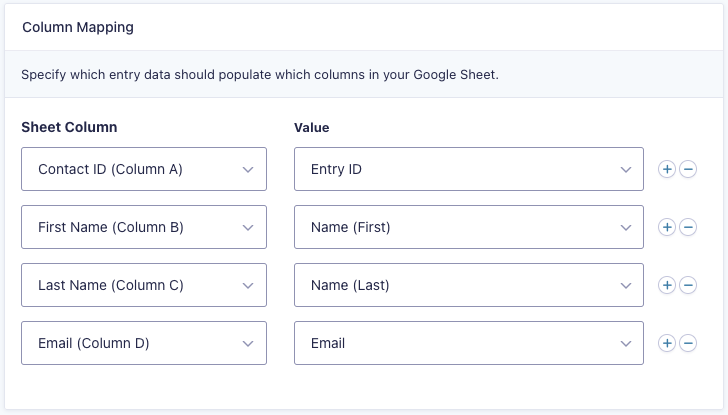
Columns can be reordered in Google Sheets without breaking the column mapping in the feed.
Additional Options
Update & Delete Rows
If you would like to keep your Google Sheet data synced to your entry data, enable the Update & Delete Rows option. When enabled, rows will be edited when entries are edited and deleted when entries are trashed or marked as spam. If an entry is restored from trash or “unspammed”, the entry row will be reinserted at the end of the spreadsheet.

Conditional Logic
You may not want to send data from every entry to your Google Sheet. In this case, use conditional logic to filter which entries get sent or which entries do not. Add as many conditions as you need.

Post Payment Actions
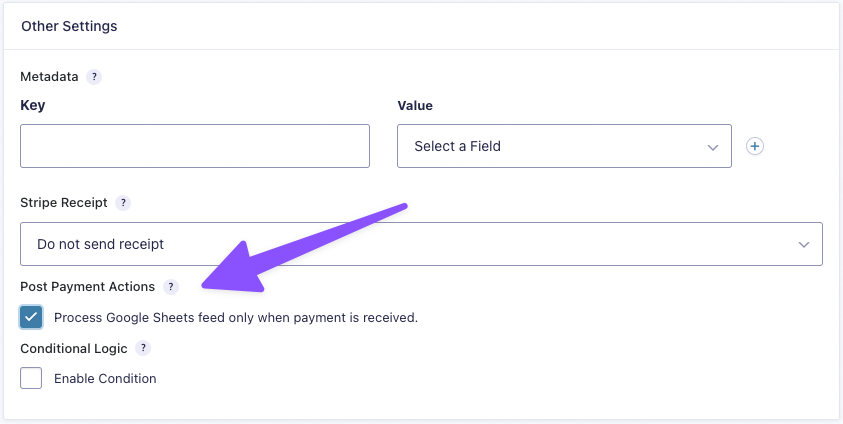
GP Google Sheets integrates with Gravity Forms “delayed payment” system, allowing feeds to only be processed after a payment has been received. This means you can wait to insert the entry row into a Google Sheet until after the user has completed their payment.
Please note: This setting will appear on the feed settings for your payment add-on rather than the GP Google Sheets feed. Here is an example from the Stripe add-on.
Send Existing Entries to Google Sheets
Here are some ways that you can send existing form entries to Google Sheets:
Manually Process Feeds
Gravity Utility is a tool that adds a new Process Feeds bulk action on the entries list page.
To get started, first download and install the Gravity Utility plugin, which you can find at the bottom of this page.
Once Gravity Utility is installed, navigate to Gravity Forms › Settings › Utility. Make sure Manually process feeds is enabled:

To manually process existing entries, open the entries list view on the form that’s connected to your Google Sheets Feed.
On the left hand side, check each entry you want to process. When finished, click on the Bulk Actions dropdown at the top of the entry list, and choose Process Feeds.
Click Apply to start the process:
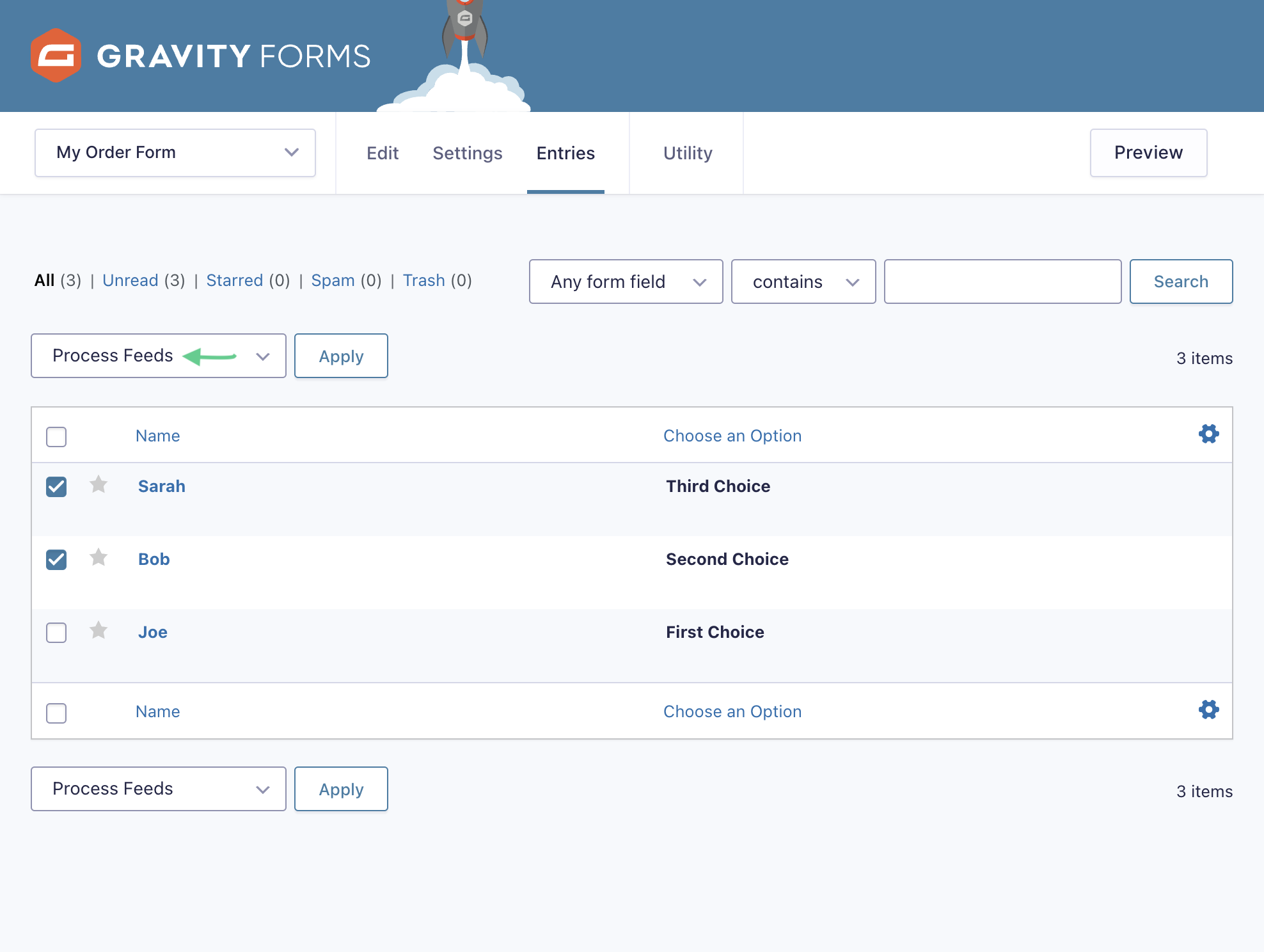
You’ll see a pop up modal where you can select the feeds you’d like to process. Choose the feed(s) you want to send your entries to and click Process Feeds:

Once finished, the selected entries should appear as new rows on your Google Sheet:

Automatically Process Feeds on Import
GravityImport allows you to automatically trigger the feed for each imported entry.
Entry Detail Meta Box
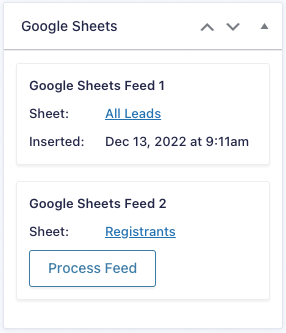
Use the Google Sheets meta box on the Entry Detail view for an overview of which Google Sheets feeds have been processed for the entry and which were not processed. You can see the time the entry row was inserted into a given spreadsheet and, if the Update & Delete Rows option is enabled, when the entry row was last updated.
Please note, when reprocessing a feed, the feed’s conditional logic is ignored.
Error Handling
If there is an error processing a feed, GP Google Sheets will log that error as a note for the corresponding entry. If the error is due to a configuration issue, you can reprocess the feed via the Entry Detail Meta Box after correcting the configuration issue.
If you would like to be notified whenever an error occurs, we recommend setting up a notification using the “GP Google Sheets Error” notification event.

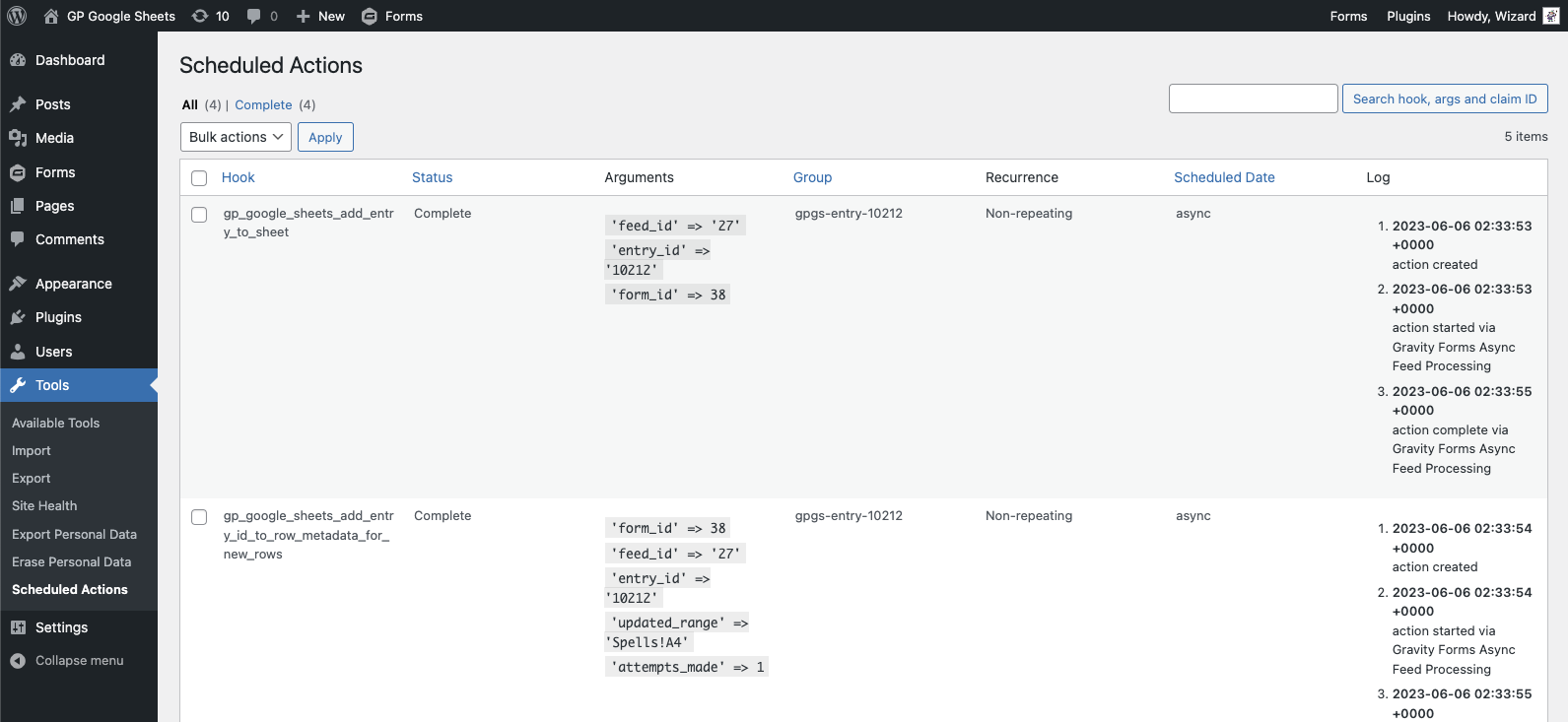
Action Scheduler
To further increase the robustness of GP Google Sheets, any interactions with an entry that triggers a change in a Google Sheet (adding, editing, and deleting entries) will be run through Action Scheduler.
Action Scheduler is a battle-tested job queue framework that was created by the WooCommerce team. It is an integral part of WooCommerce and many other popular WordPress plugins today.
By using Action Scheduler, you have more visibility into actions and whether or not they’ve already successfully run or failed.
If any of the GP Google Sheets actions in Action Scheduler fail, GP Google Sheets will automatically schedule follow-up retries using an exponential backoff strategy to help ensure that new entries, edited entries, and deleted entries are reflected in Google Sheets.
Accessing Action Scheduler
You can navigate to Action Scheduler by going to Tools » Action Scheduler in the WordPress Dashboard.
Failed Actions
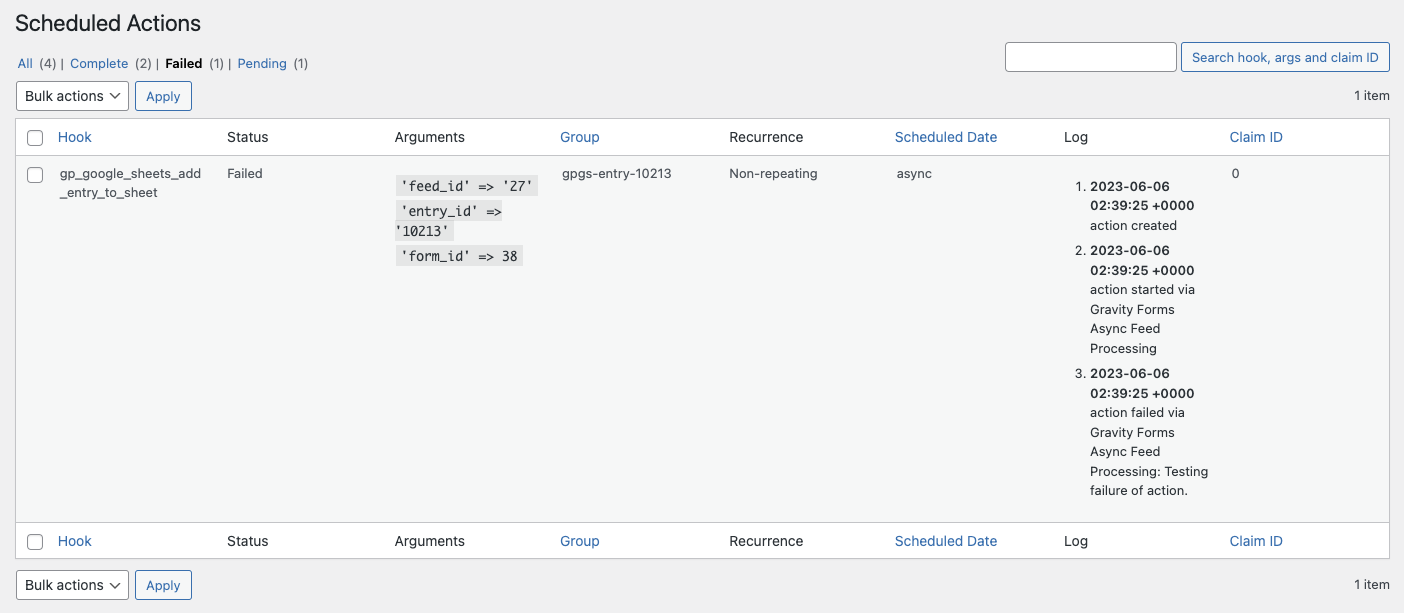
To get more insight into why new entries (or entry updates/deletions) are not making it to Google Sheets, you can navigate to the “Failed” tab of Action Scheduler.
Pending Actions
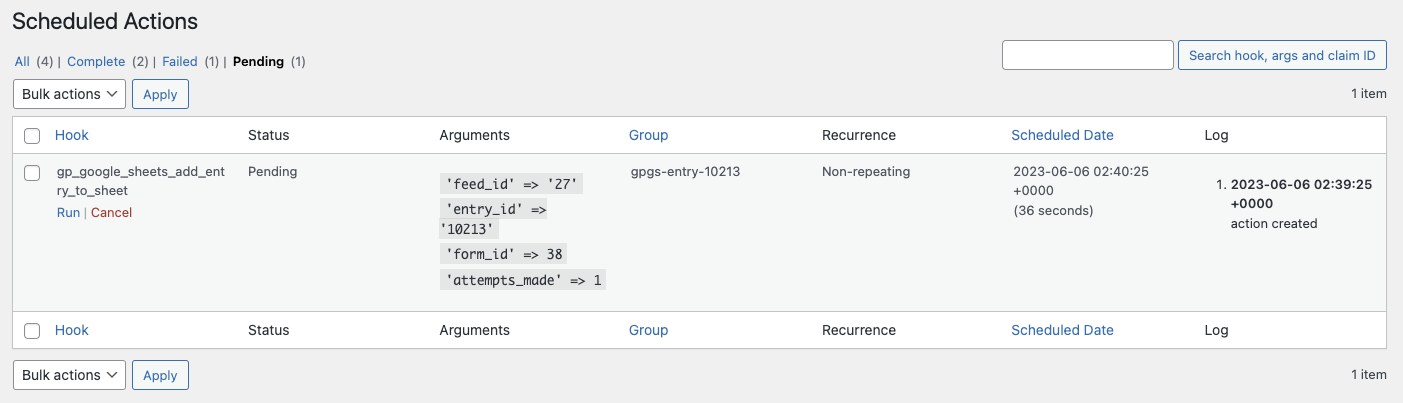
GP Google Sheets uses an exponential backoff strategy for any failed requests associated with an entry. Due to the exponential backoff, there will be a delay between each retry.
If you’re curious when the next retry will be or want to run the pending actions immediately using the “Run” button, you can access them under the “Pending” tab.
Google Sheet Security
Privacy and security are core tenets of our authentication flow. Your Google Sheets data will never touch our servers.
Our OAuth service will handle getting an access/refresh token and pass it directly back to your WordPress site. There is no database attached to the service.
You will only interact with our OAuth service during initial authentication, when using the “Select existing sheet” functionality, refreshing access tokens, or re-authenticating your connection. For all other requests, your site will communicate directly with the Google APIs.
What can GPGS access?
GPGS can only access spreadsheets that you authorize. This includes spreadsheets created by GPGS and any existing sheet that has been connected to a GPGS feed.
It is important to note that when you disconnect a Google Sheet from a feed, this does not remove GPGS’ access to this spreadsheet. It is not possible to remove GPGS’ access to a specific spreadsheet once authorized. Instead, you must remove GPGS’ access globally and then reauthorize each feed/spreadsheet individually.
How do GPGS tokens work?
A global GPGS token is registered via the Google Sheets plugin settings. This global token is used to create new sheets regardless of which user is logged-in.
For connecting existing sheets, each user must authenticate with Google to generate their own token. This token will be used each time they connect an existing sheet. In earlier versions of GPGS, a new token was generated for each connected spreadsheet.
Tokens are automatically refreshed when they expire. No additional action is required; however, there are some scenarios where a token must be manually refreshed/reconnected. For example, changing your Google account password or removing GPGS’s access to your Google account.
Use the Token Health section on the plugin Google Sheets plugin settings page to confirm if your token is still connected and reconnect it if required.
Managing GPGS Tokens
You can manage your GPGS tokens by navigating to Forms › Settings from your WordPress Dashboard.
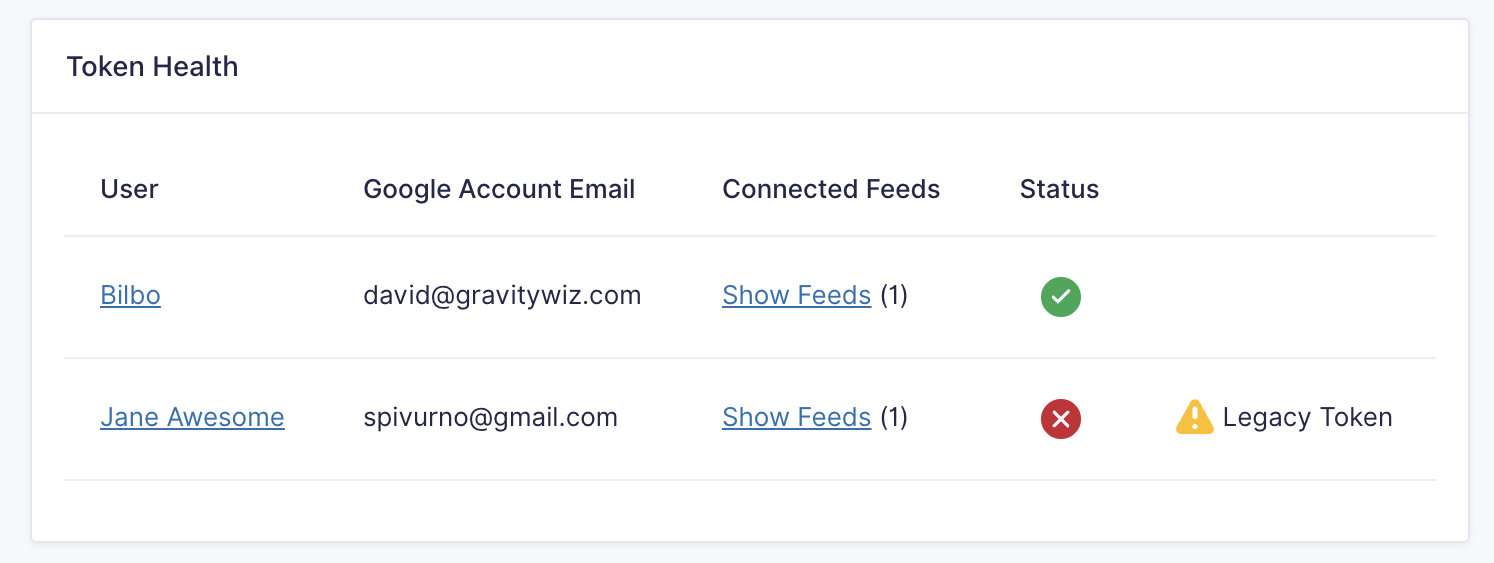
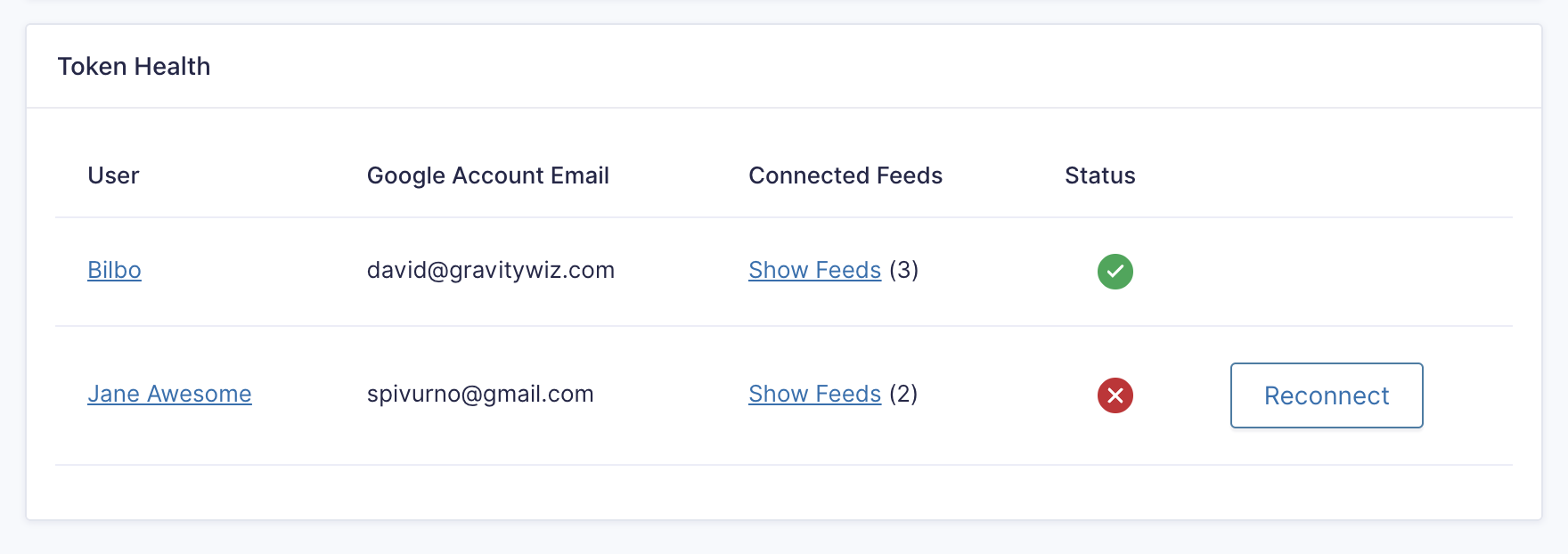
The Token Health section displays a summary table of all the GPGS tokens that your site is using.
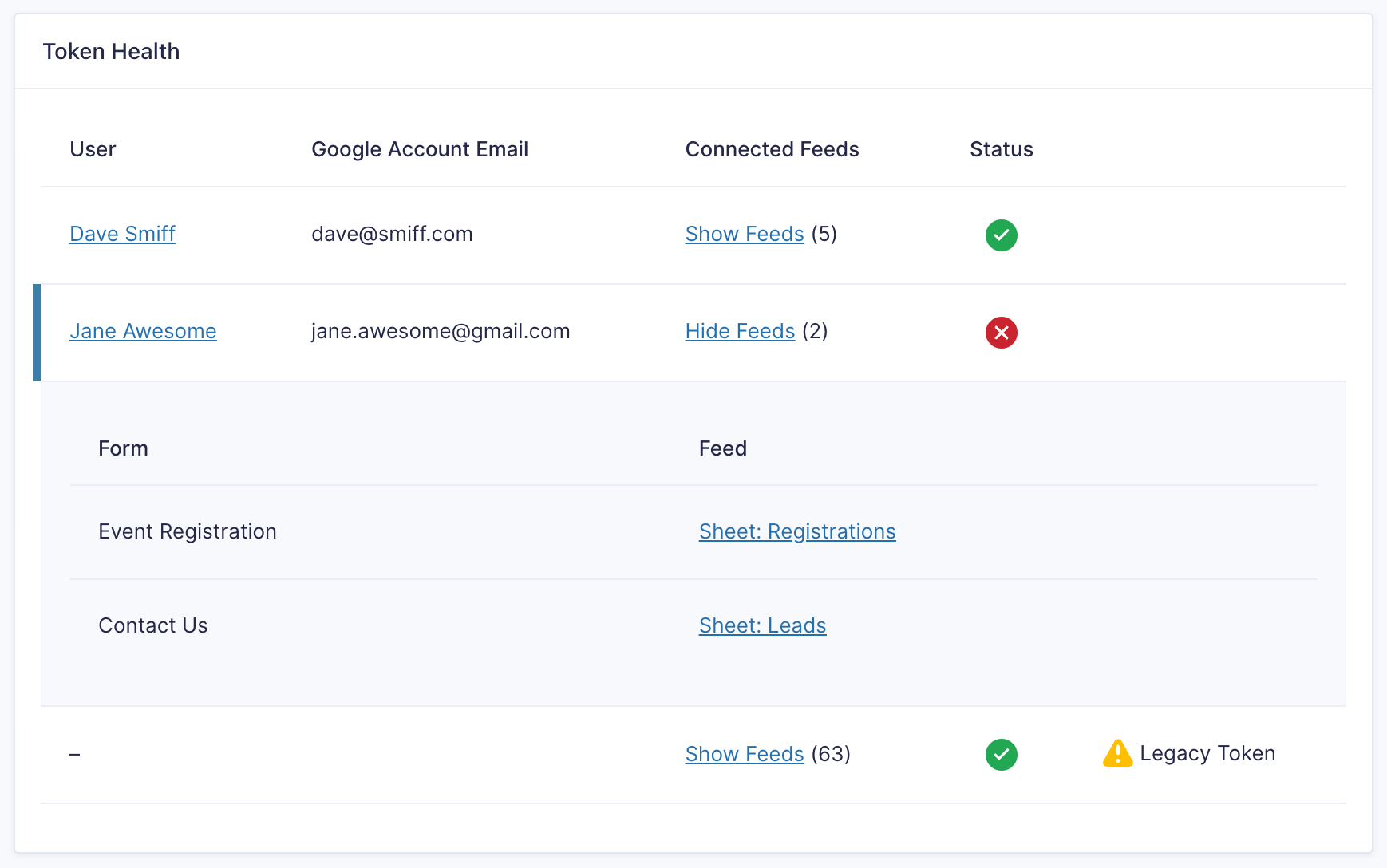
It includes the following columns:
- User: The WordPress user the token is linked to.
- Google Account Email: The email address of the Google Account the token is linked to.
- Connected Feeds: A list of feeds a token is linked to. Click Show Feeds to see the full feed details.
- Status: The token’s current status.
- A green checkmark icon indicates that the token is connected.
- A red “x” icon indicates that the token is disconnected.
- Actions / Warnings (unlabeled)
- Legacy Token: A notice appears for legacy tokens. See instructions for updating legacy tokens below.
- Reconnect Button: Appears if the logged-in user’s token is disconnected. Click the Reconnect button to reconnect the token for all attached feeds in one click.
- Legacy Token: A notice appears for legacy tokens. See instructions for updating legacy tokens below.
Legacy Tokens
GPGS Beta 1 used a different authentication schema to connect to Google Sheets. Tokens generated via this schema are now considered legacy tokens. We strongly recommend re-authenticating feeds connected via a legacy token with the current authentication method.
To re-authenticate a feed attached to a legacy token, follow these steps:
- Disconnect the legacy token from your feed.
- Re-connect by choosing a new or existing sheet.
Integrations
Nested Forms
You can import parent and child forms to the same spreadsheet by creating a feed for both the parent and child form. The parent form feed will be processed first and then the child form feed.
Populate Anything
GP Google Sheets integrates seamlessly with our popular Populate Anything plugin, allowing you to populate data directly from Google Sheets into your form.
When activated, Populate Anything will have access to any sheet created by or authorized for use with GP Google Sheets. If you would like to authorize a sheet specifically for use with Populate Anything, you can do so from the Google Sheets plugin settings.
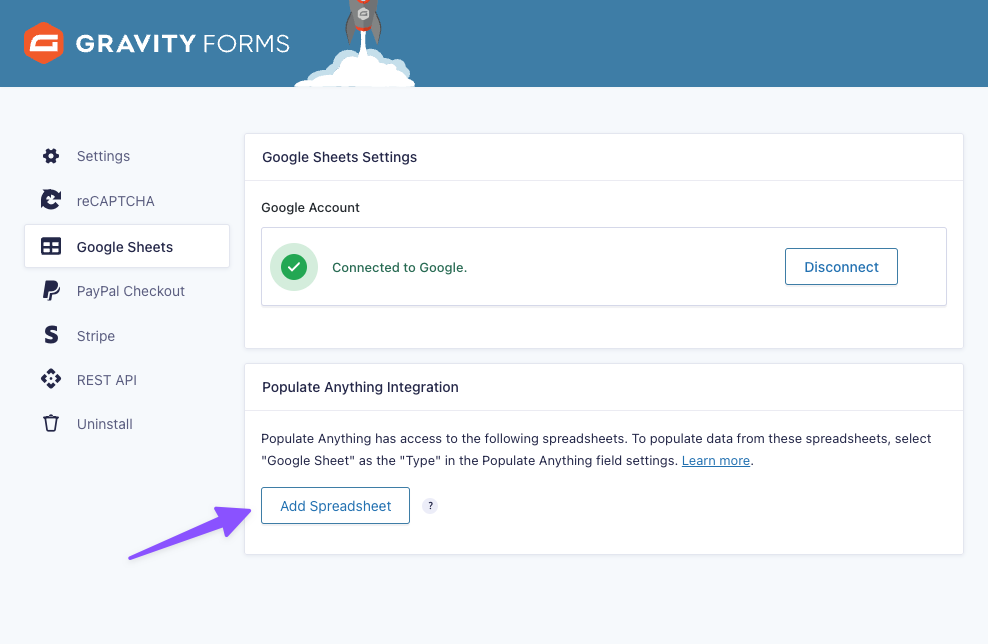
For full details on this integration, see the Populate Anything documentation.
FAQ
Does GP Google Sheets support files in shared drives?
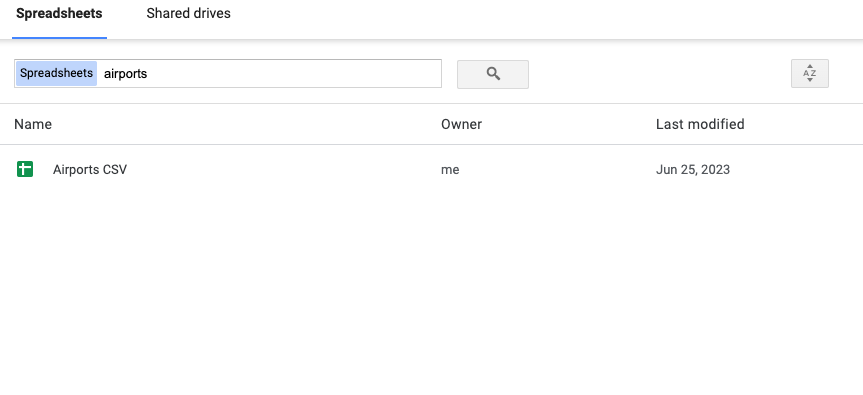
Yes, files in shared drives are fully supported. If you’re looking to select a shared sheet and it does not appear by default, try searching for the name of the shared sheet:
How can I send QR codes to Google Sheets?
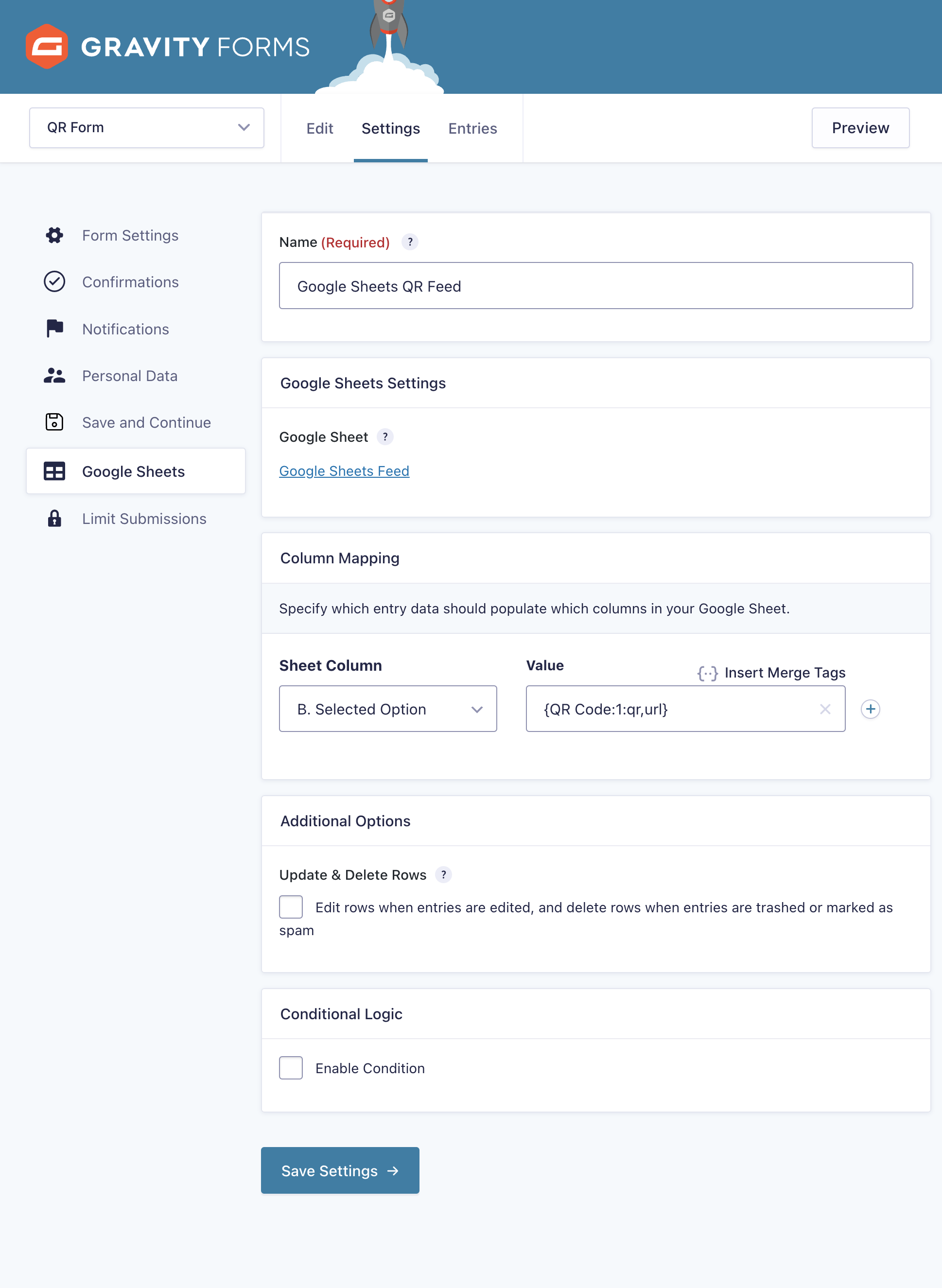
When mapping your spreadsheet columns, select the Add Custom Value option and insert the QR Code merge tag for the field you want.
In this example, the QR Code URL will be inserted into the Selected Option column in Google Sheets:
Can I rename or reorder columns?
Yes. GP Google Sheets supports reordering or renaming columns, even after they have been mapped. To re-order a column, all you need to do is drag and drop the column heading in your Google Sheet:
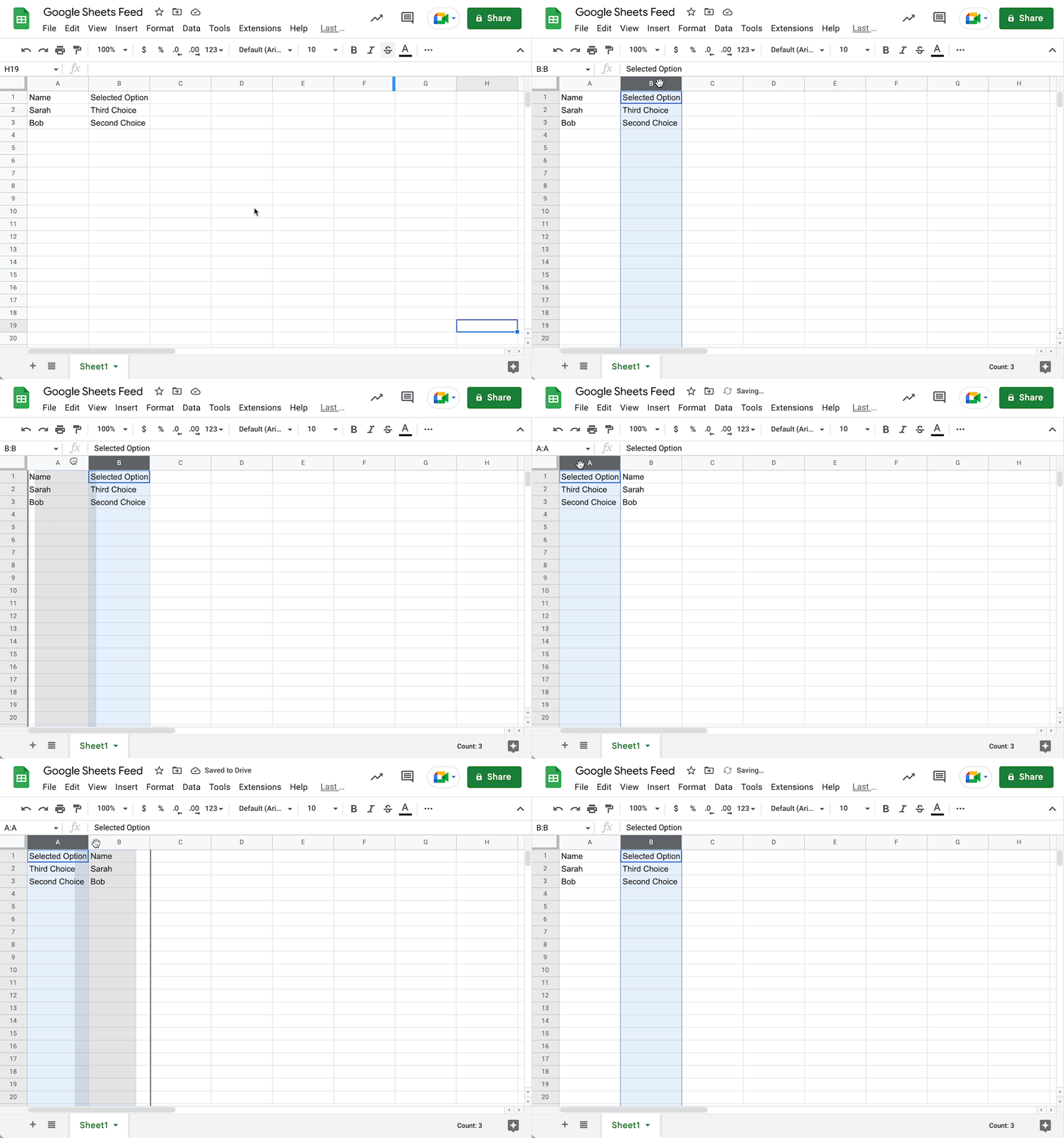
Once you’re finished making your changes in Google Sheets, the feed will automatically update to use the new column order and names the next time it gets processed. That’s it!
How can I allow multiple users to authorize Google Sheets?
Your best bet is to create a Google group account and add any users that should have access to authorize Google Sheets to this account. Then, ensure that all users use this same group account when interacting with Google Sheets via the GPGS plugin.
Is GP Google Sheets asynchronous?
Yes, the process to send form data to Google Sheets is asynchronous. This means the form will submit immediately without waiting for the GPGS feed to finish processing.
Can GP Google Sheets apply colors and formatting to my Google Sheet?
Not at this time. Instead, we recommend formatting your sheet directly within Google Sheets itself in order to have the most control and flexibility. Check out these handy guides that show how you can format your Google Sheets:
Why can’t I select a spreadsheet when setting up GP Google Sheets?
Google’s File Picker tool requires cookies to be enabled. Please make sure that cookies are enabled in your browser by following the steps below:
Additionally, sometimes ad blocking plugins can create unexpected issues. If you’re using any form of ad blocker, try disabling it and start the setup process again.
Why doesn’t the date format in my Date field match the date format in Google Sheets?
- When sending a Date field to Google Sheets, the format is always set to: YYYY-MM-DD. This is the standard format that Google Sheets uses and is the most compatible with all of Google Sheets’ capabilities.
- Solution: To display the date in a different format, you can always format the date column directly in Google Sheets.
Known Limitations
- Each WordPress user can only connect to one Google account. If you’re looking to link a single WordPress user to multiple Google accounts? Let us know!
- Edits made to entries via GravityView are not processed by GP Google Sheets.
- GP Google Sheets requires a header for each column that is mapped, and any column that comes before a mapped column. Even a character as simple as
-works as a header.- Advanced: If a column comes after all mapped columns, a header is not required.
- When using GP Google Sheets with GP Populate Anything, it is not possible to filter on a value if the value contains both a single quote and a double quote.
If any of these known limitations impact you, we’d love to hear from you. While some limitations are beyond our control, understanding how these limitations impact you is incredibly important in how we prioritize ongoing product development.
Translations
You can use the free Loco Translate plugin to create translations for any of our Perks. If you’ve never used Loco translate before, here’s a tutorial written for beginners.


Reviews
Clear filtersThere are no reviews yet.