All-in-one digital toolkit. Premium WordPress themes, Shopify themes, plugins, templates & creative assets.

API Key field
A field where you are supposed to insert the MailerLite API key.



 Recently Updated Well Documented

A top-notch addon to bring your email marketing to the next level.

MailerLite Action is a JetFormBuilder addon that allows connecting Crocoblock forms to the MailerLite email marketing software. Thanks to it, you’ll be able to get even more input for your email marketing campaigns.
Turn the blog audience into subscribers – you could share your knowledge bit by bit and show the readers your way of doing things.

A field where you are supposed to insert the MailerLite API key.
This option lets you add subscribers to certain groups and attach a certain tag to them on the frontend.
Fields Map represents a default set of fields that will be displayed in your form. To make it work, pick corresponding meta fields from the Select drop-down.
Sends a request to the server and validates the API key. “Retry request” checks the key’s validity.
Use this option to synchronize the groups from a MailerLite Action profile and the Crocoblock-built form.
To install the addon, go to JetFormBuilder > Addons and find the “MailerLite Integration” addon in the All Available Addons section. Press the “Install Addon” button and, once installed, it will appear on Your Installed Addons. Next, click “Activate Addon” to get it ready for further work.
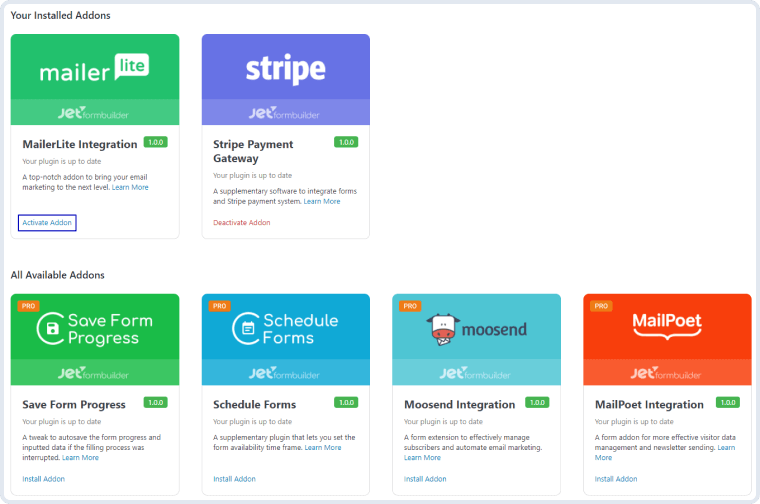
As you can see, all PRO version addons can be installed and activated through JetFormBuilder Dashboard.
Go to the MailerLite website and sign up for an account. If you already have one, log into it.
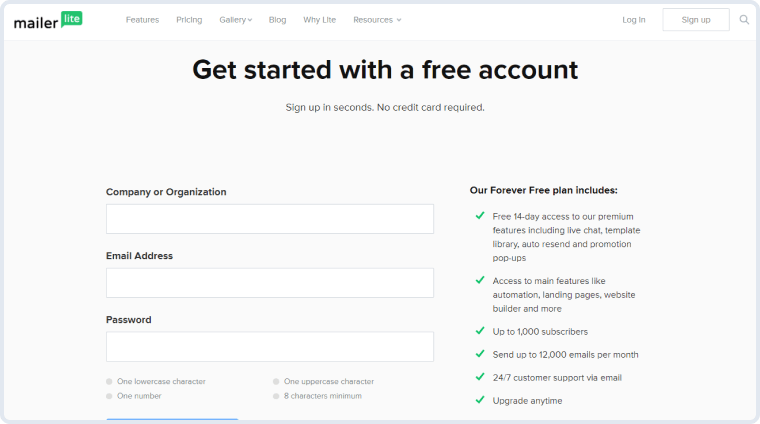
NOTE. Please keep in mind that you will need to complete ALL the steps to create a new account.
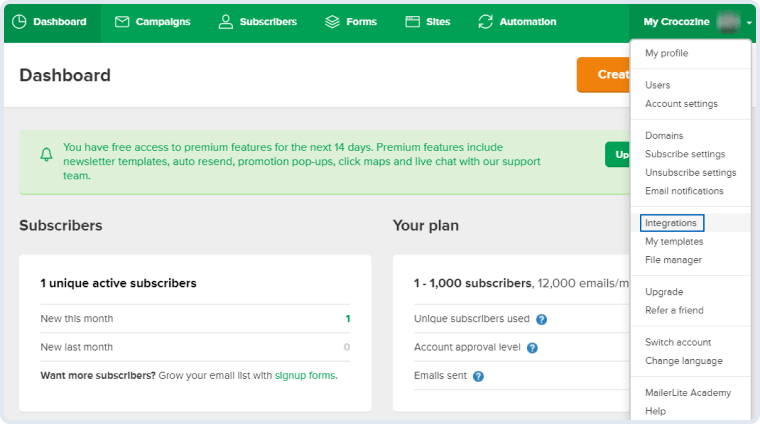
Next, click on the drop-down arrow next to your profile picture in the right corner of the top toolbar. Press on “Integrations”.
You’ll see a new window showing all possible integrations. Spot the MailerLite API section and press the “Use” button in the Developer API row.
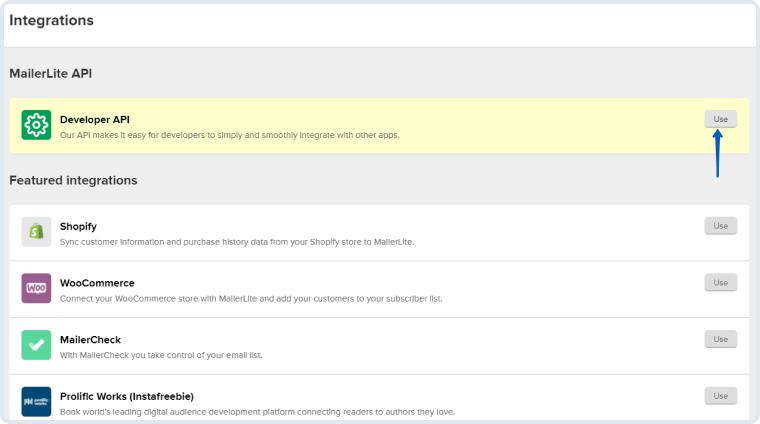
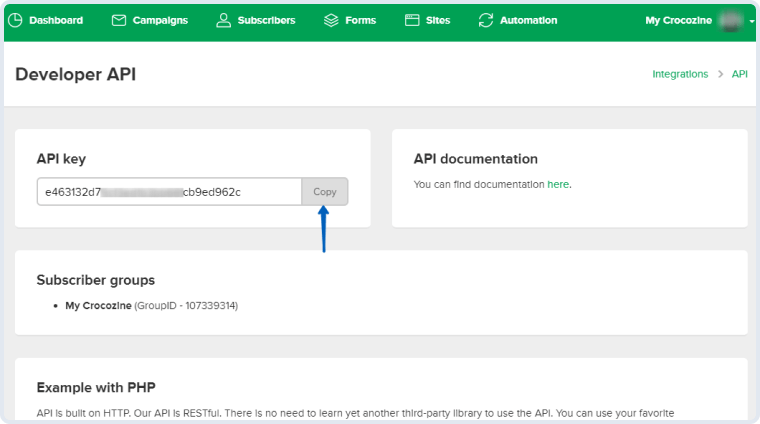
In the newly-opened window, you’ll see the API Key to be used for further integrations. Copy that key.
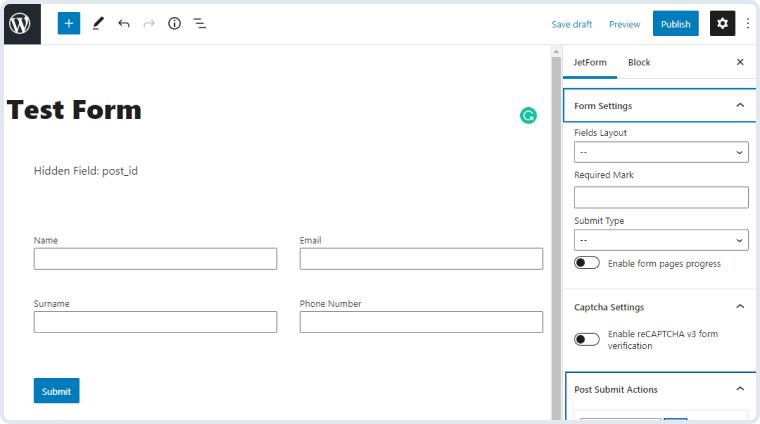
Open your website’s dashboard and go to JetForms > Forms. If you’ve got a form you would like to link with MailerLite, open it. If not, click on the “Add New” button.
In the JetForm tab to the right of the page editing area, open the Post Submit Actions section, hit the “New Action” button, and choose the “MailerLite” option from the drop-down list.
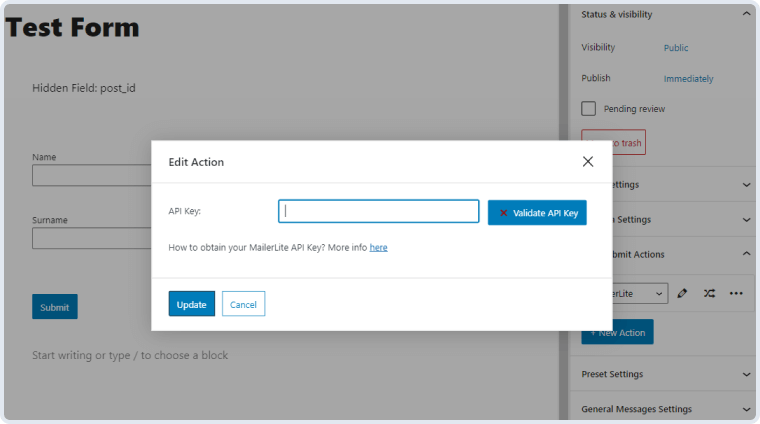
Press the edit button with a pencil-shaped icon on it and you will see the Edit Action window. Paste the API key you copied to the API Key bar and press the “Validate API Key” button.
Right after, you’ll see the Group drop-down select and the Fields Map section. In the Group drop-down menu, there will be all the subscriber groups from your MailerLite account. The Fields Map contains the fields that have to be filled from the form that the user submits. The Email field is required, while the remaining fields are not. To create a connection between the form field and the user’s field in MailerLite, choose the corresponding form field in the drop-down list next to each Fields Map item.
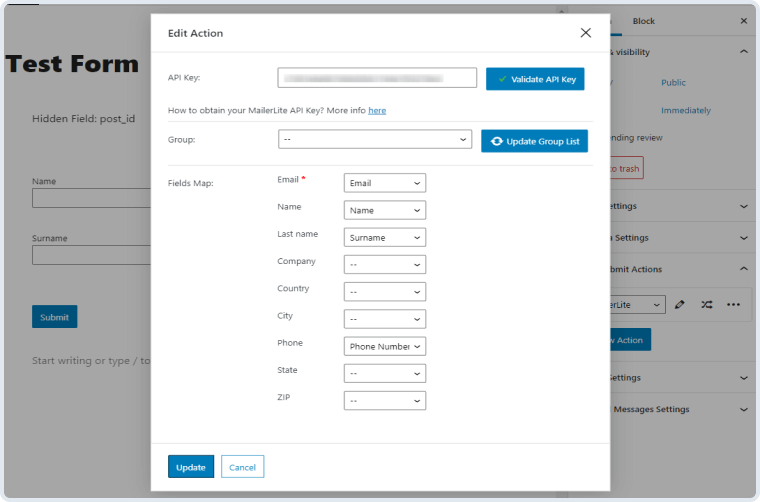
As soon as you finish, press the “Update” button. Now, when the user submits the form, the new subscriber will appear in the Subscribers list of your MailerLite account.


No account yet?
Create an Account