All-in-one digital toolkit. Premium WordPress themes, Shopify themes, plugins, templates & creative assets.

“Make a request” button
Hit this button to synchronize the form data and the MailPoet plugin.



 Recently Updated Well Documented

A form addon for more effective visitor data management and newsletter sending.

MailPoet Action is a JetFormBuilder addon that helps you link a subscription form to the WordPress MailPoet plugin. Thanks to it, you will be able to collect leads from your sign-up forms and landing pages, add subscribers to mailing lists, share exclusive content and promote your products via newsletters, as well as manage subscribers. It’s super convenient since MailPoet functionalities are accessible through WordPress Dashboard.

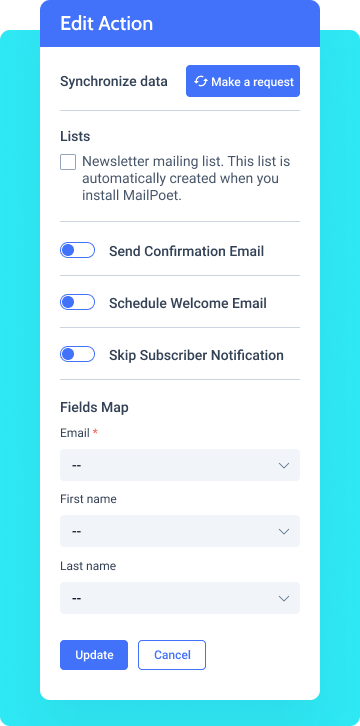
Hit this button to synchronize the form data and the MailPoet plugin.
Here are stored the mailing lists you created with the help of MailPoet.
Activate this toggle to make users confirm their accounts via email.
Allows you to send a welcome email to a newly subscribed member.
Enable this option and users won’t receive any notifications upon registration.
This is a set of fields that will be displayed in your form. Pick the corresponding meta fields for Fields Map to work properly.
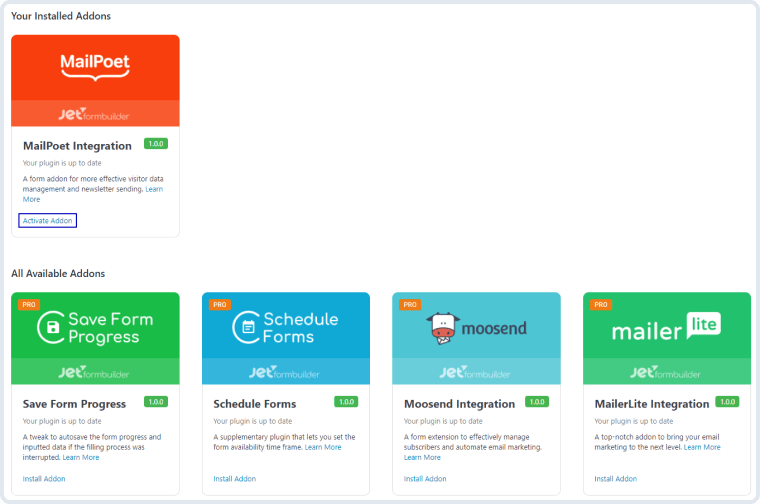
To install the addon, go to JetFormBuilder > Addons and find the “MailPoet Integration” addon in the All Available Addons section. Press the “Install Addon” button and, once installed, it will appear on Your Installed Addons. Next, click “Activate Addon” to get it ready for further work.
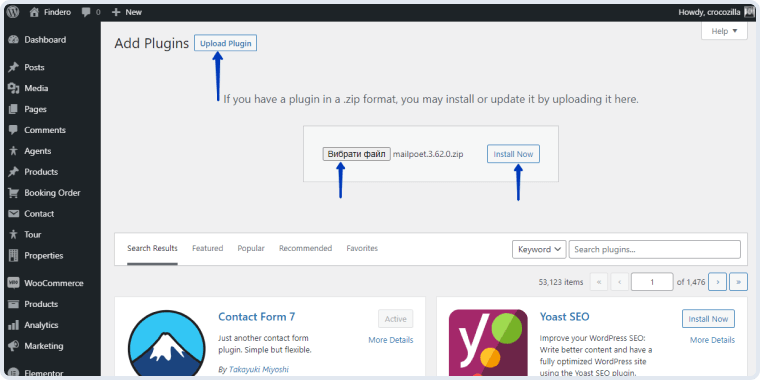
To make the MailPoet Integration work as intended, you will have to install the corresponding plugin. Go to the WordPress website and download the MailPoet plugin. Then navigate to Plugins > Add New, hit the “Upload Plugin” button. Then click the “Choose File” button and choose the MailPoet plugin you have just downloaded. After that, hit the “Install” button.
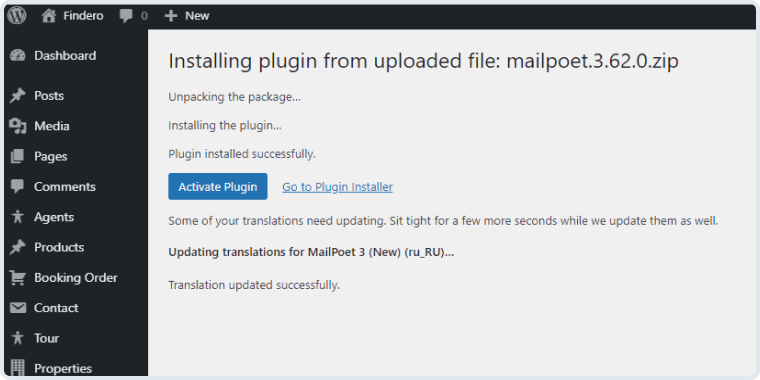
Once the plugin is installed, it needs to be activated by pressing the “Activate Plugin” button.
In the end, you need both these plugins active and ready to go.
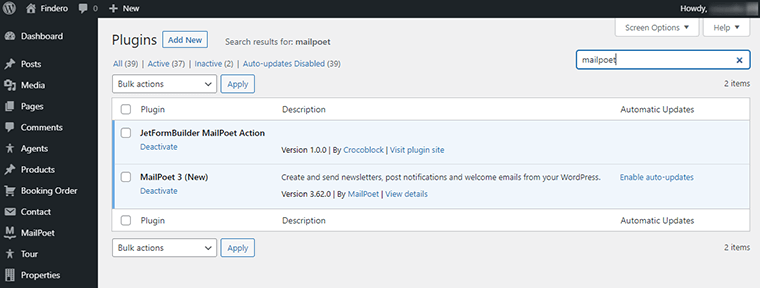
After you install and activate the MailPoet plugin, you will see that a new item has been added to your admin panel, called MailPoet. To start using its subitems, you are supposed to sign up for an account.
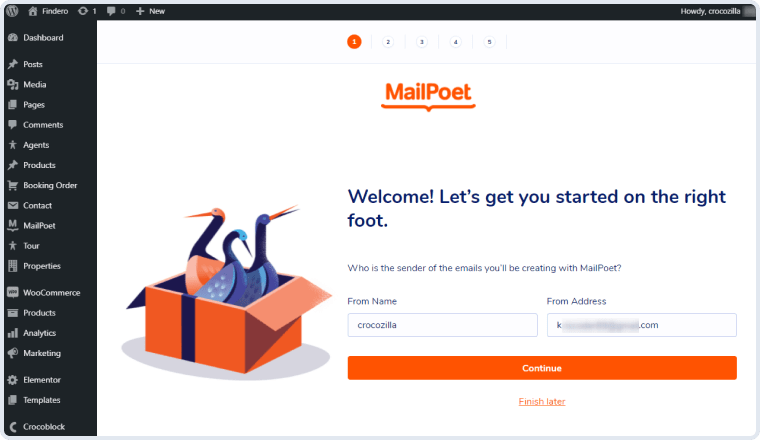
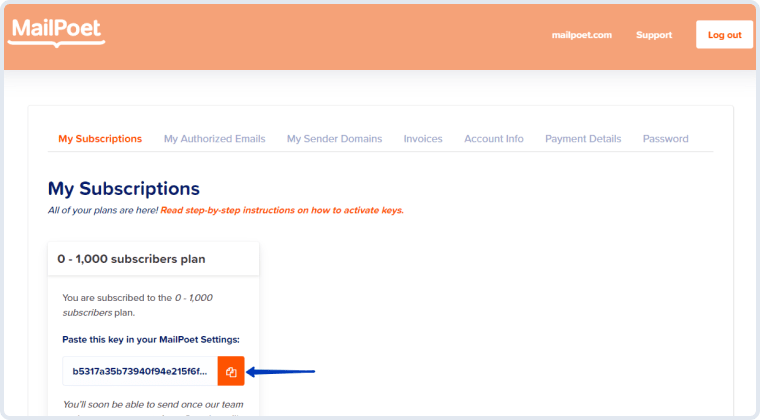
Click the “Continue” button and start completing the steps. Once asked to sign up with MailPoet, you will be redirected to the account creation page. Enter your email address, come up with a password, verify your email, and fill out a short questionnaire. After all these steps, you will be taken to your MailPoet account page. In the My Subscriptions tab, there will be the MailPoet key. Copy it.
Proceed to MailPoet > Settings > Key Activation, and paste the MailPoet key to the Activation Key field. Then press the “Verify” button.
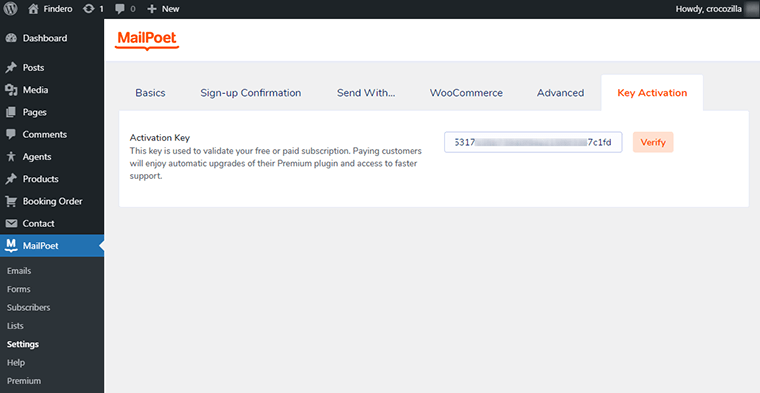
After the key is verified, you can proceed to configure the MailPoet Action addon itself.
Open your website’s dashboard and go to JetForms > Forms. If you already have a form you would like to link with MailPoet, open it. If not, click on the “Add New” button.
In the right-side menu, open the Post Submit Actions section, click on the “New Action” button and choose the “MailPoet” option from the drop-down list.
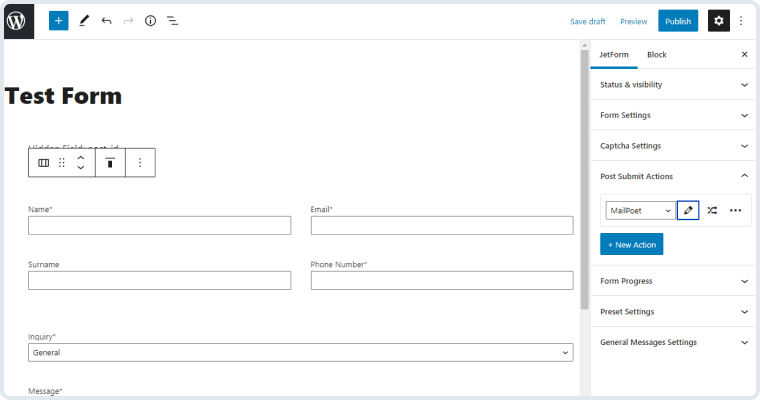
Click on the edit button with a pencil-shaped icon on it, and the Edit Action window will open. You will be shown the “Make a request” button. Press it to synchronize the JetFromBuilder form’s data and your MailPoet account.
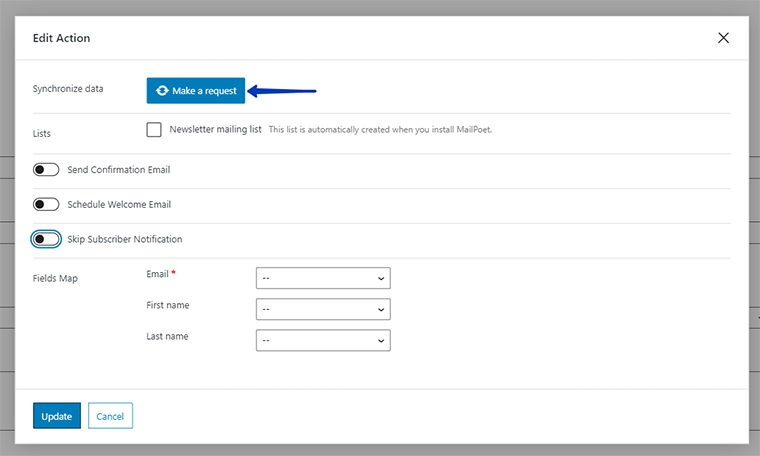
As soon as the data is synced, you will see the rest of the MailPoet Action settings.
Once you are done, press the “Update” button. Now, when the user submits the form, the new subscriber will appear in the MailPoet > Subscribers pathway.


No account yet?
Create an Account