An effective on-site search implementation provides unique insight into your visitors. By observing what visitors are searching for you can make educated decisions about areas of improvement when it comes to your content.
SearchWP’s Metrics extension collects comprehensive data for on-site search, and provides you with actionable advice about refinements you can make to your content as time goes on.
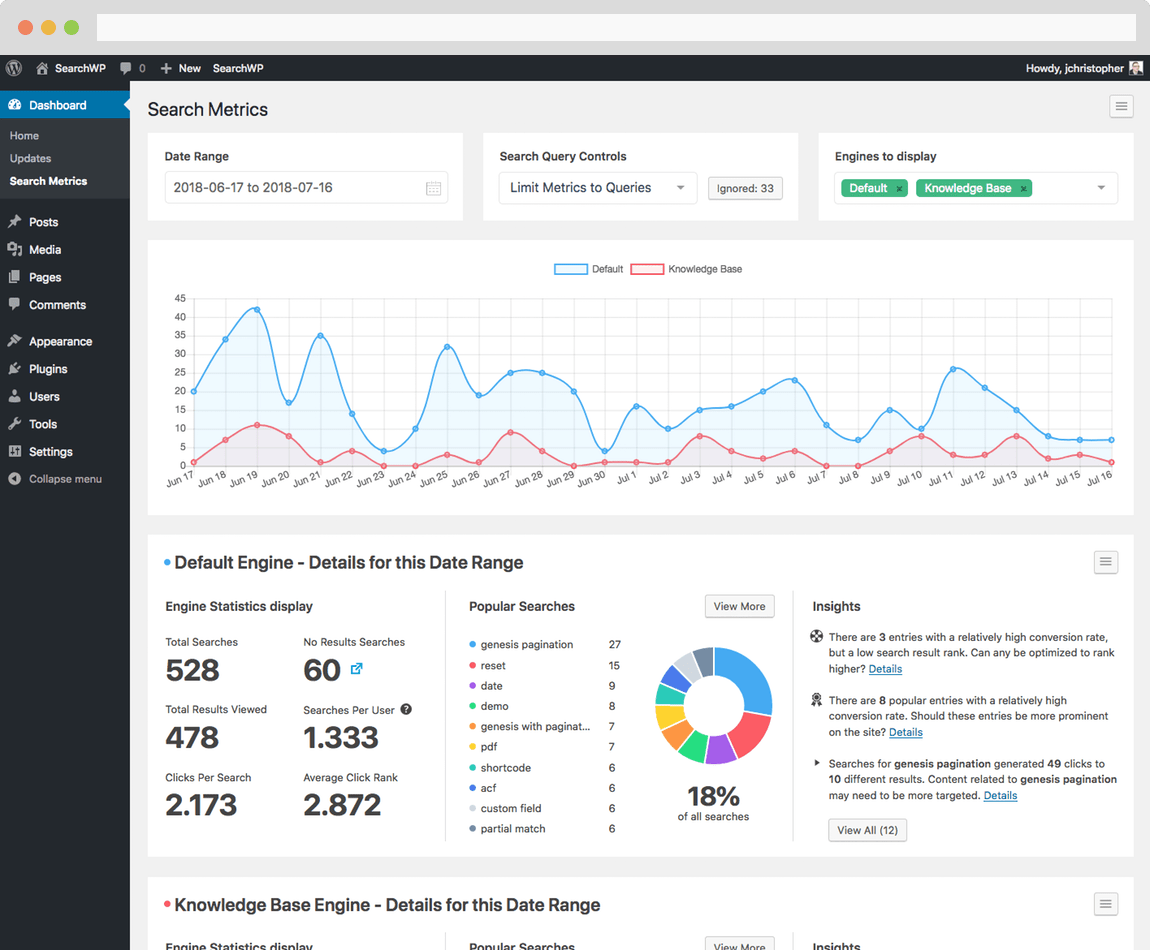
SearchWP Metrics main interface
Documentation – Table of Contents
Installation & Setup
Metrics was built to be a turnkey Extension for SearchWP. Metrics is a standalone WordPress plugin that should be installed and activated alongside SearchWP itself. Once installed and activated Metrics will immediately begin tracking searches and clicks. Metrics will begin displaying data as soon as enough has been collected.
Metrics was designed to supersede SearchWP’s core statistics feature. As a result, both the SearchWP Statistics page and Dashboard Widget will no longer display, and counterparts from Metrics will take their place.
Click Tracking
By default, Metrics will automatically track clicks for the Default engine, assuming that your search results template uses The Loop. Any link within The Loop that is generated using get_permalink() (or variant thereof) will automatically be set up for click tracking. If you’re using a standard search results template you should be all set without needing to make any edits.
To integrate click tracking in your supplemental engine(s) you need to add two Hooks to your results template, one before your own loop of results, and one afterward.
Begin Metrics link tracking:
Stop tracking links:
All links generated with get_permalink() (or variant thereof) within those two actions will be processed by the click tracking within Metrics.
Metrics ships with its own Dashboard Widget that allows you to take a quick look at basic data when you log in to your site.
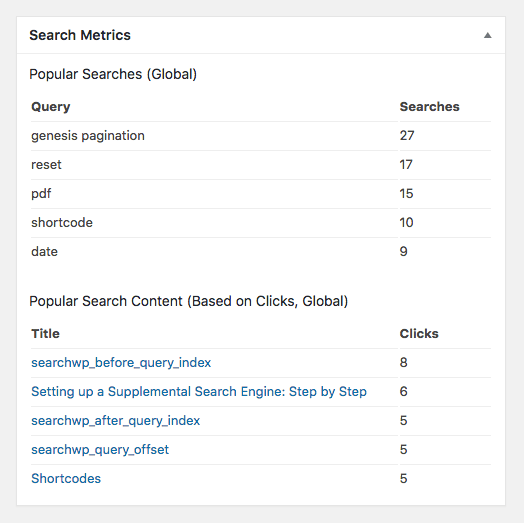
SearchWP Metrics Dashboard Widget
The Widget updates in real time as you visit your Dashboard, and you can customize the number of popular searches and number of popular posts shown.
Customizing Data
Metrics allows you to easily customize the data being displayed. You can control the date range, the search queries, and the engines to display:

Customize what Metrics displays
Date Range: Customize the date range shown in the main chart and engine details.
Search Query Controls: Limit the data displayed to a set of search queries. You can also control what queries have been ignored.
Engines to Display: Control which engine(s) are displayed in the charts
Reviewing Data
The line chart at the top of the page shows the searches over the chosen time frame for each selected engine. Below are details for each engine that provide specific metrics for further examination:
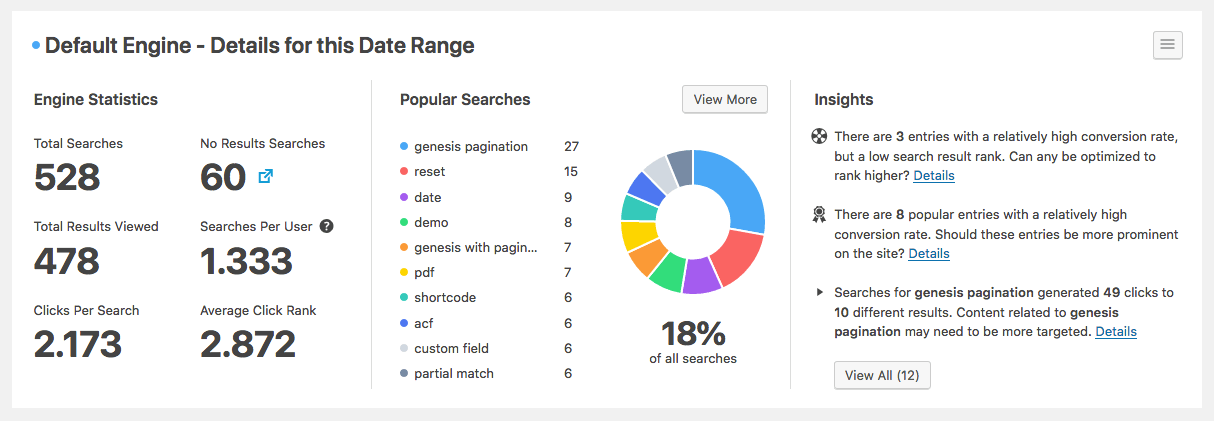
Details for one of the chosen engines
A details area is shown for each selected engine.
Engine Statistics
On the left are Engine Statistics:
- Total Searches
- The total number of searches for the chosen time frame
- No Results Searches
- The total number of searches that generated zero results (click the icon for more details)
- Total Results Viewed
- The total number of conversions (clicks) for the chosen time frame
- Searches Per User
- The average number of searches per user (based on only users who have searched)
- Clicks Per Search
- The average number of clicks per search
- Average Click Rank
- The average rank of a clicked search result
When clicking the icon next to the No Results Searches you’re able to review a list of all of the search queries that yielded zero results, and how many searches there were. This list can be reviewed for accuracy as time goes on.
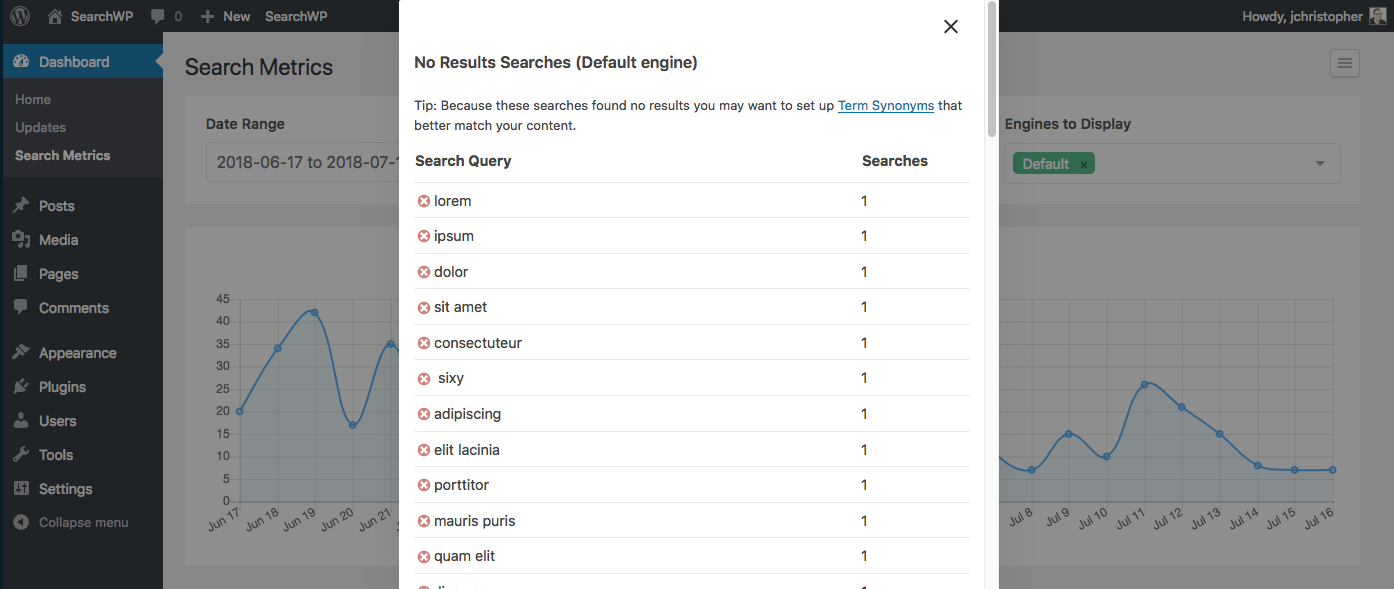
A list of no results searches within Metrics
Clicking the × icon next to a failed search query will add it to the list of ignored searches.
Popular Searches
The Popular Searches area lists the most popular searches on your site. Clicking either a listed popular search or the View More button brings up even more detail to check out:
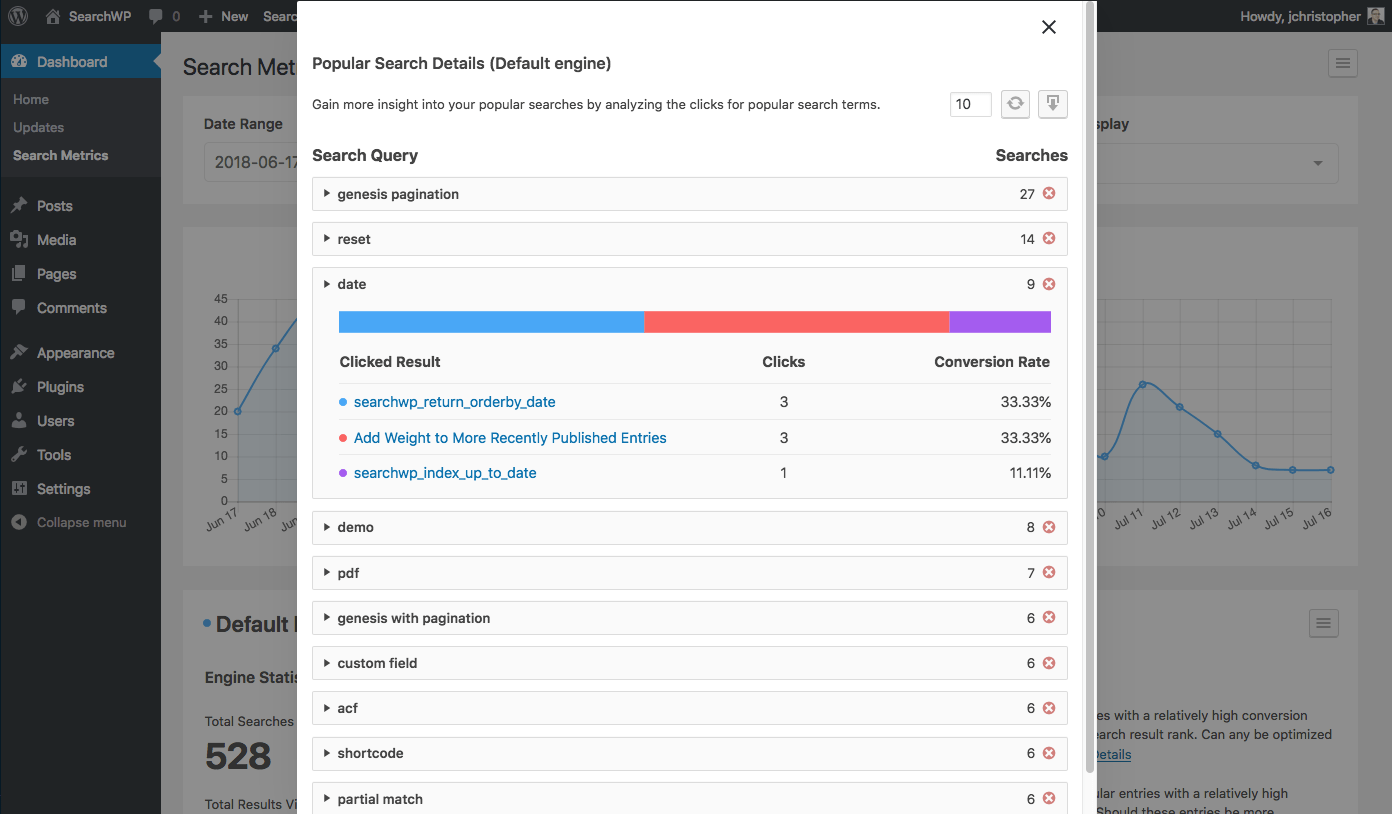
Details view for Popular Searches in Metrics
For each listed popular search you can expand additional details including which entries were clicked as a result of that search query and how many times. Using the controls at the top you can control how many popular searches are returned, and also export the data to CSV.
Insights
Metrics not only collects this data for you but it also implements some analysis to let you know where your content can potentially be improved. By analyzing conversion rates, popular searches, frequency of searches, and results rank positions, Metrics can let you know when:
- Content is ranking low but getting a lot of clicks: can this content be optimized to rank higher?
- Content is getting a high conversion rate: should this content be more prominently linked because so many visitors are searching for it?
- Searches are converting on a variety of posts: should new content be created for these search queries?
Insights can call out some areas of improvement based on actual visitor searches:
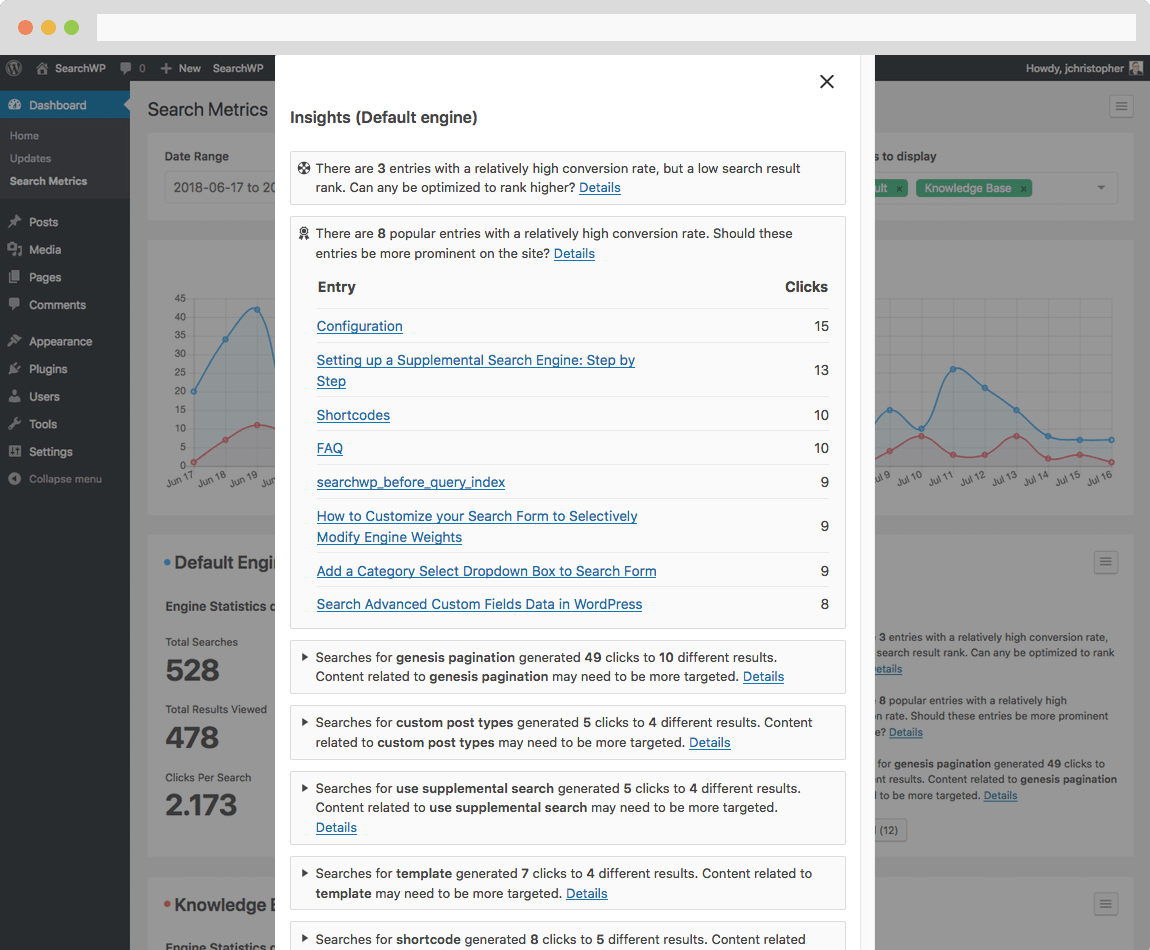
Insights give actionable advice based on collected data
Exporting Data
Within each engine details pane you can export any of the data being displayed:
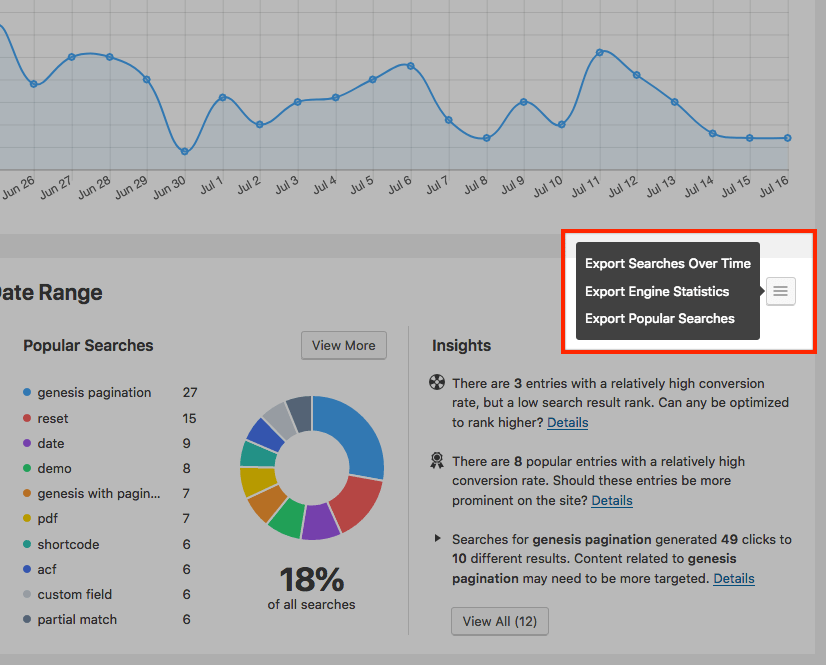
The export features in Metrics
Exports are formatted as CSV files, which can then be used in any way you’d like.
Settings
Metrics integrates some shortcuts and settings that can help you customize things a bit.
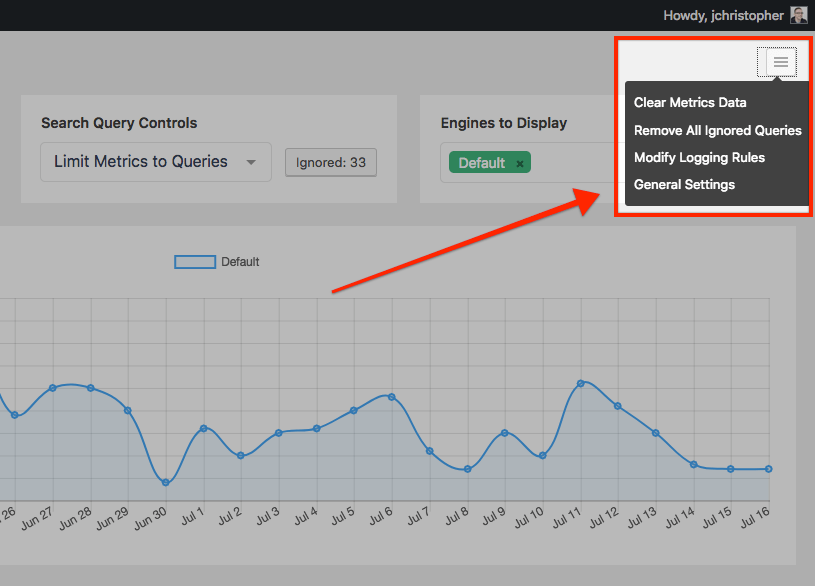
Settings menu in Metrics
You can use Clear Metrics Data to remove the data logged by Metrics, and Remove All Ignored Queries will reset your ignored queries leaving nothing ignored. These operations cannot be undone so make sure you have a backup if necessary!
Modify Logging Rules
Metrics comes with some basic controls to make excluding certain searches a bit easier:

Easily blacklist User IDs/Roles or IPs to prevent searches from being logged
Here you can add any combination of WordPress User IDs or Roles that should have their searches ignored. You can also maintain a list of IPs to blacklist as well. This makes excluding internal searches (so as to avoid polluting data) a bit easier.
General Settings
There are a couple of general items to consider when using Metrics:
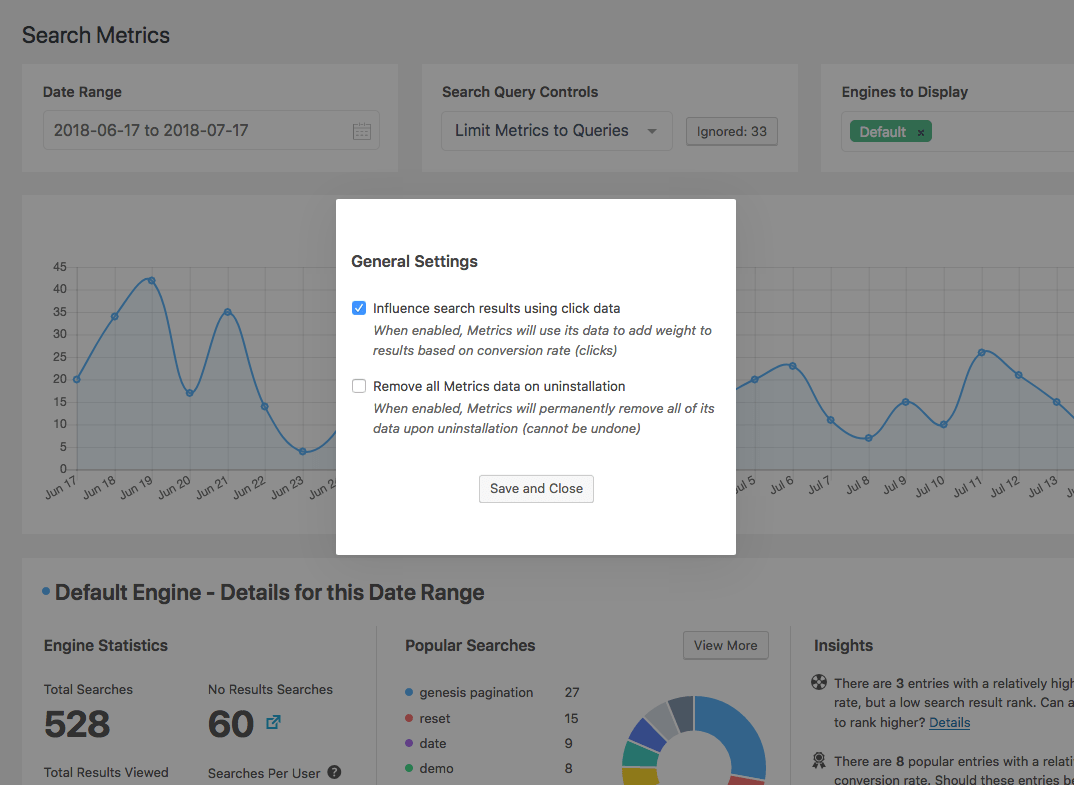
General settings for Metrics
Metrics is able to use its tracking data to provide a buoy of sorts for search results. If you’d like results with more clicks to rank higher over time than those with fewer clicks, you can tick the checkbox to Influence search results using click data. This feature requires SearchWP version 2.9.14 or higher.
Metrics can also clean up after itself. With the Remove all Metrics data on uninstallation checkbox ticked, Metrics will remove its custom database tables, all click tracking data, and any stored options upon deletion.
Filters
There are a couple of filters to note when using Metrics:
searchwp_metrics_dashboard_widget_max_popular_posts
Set the number of popular posts to show in the Dashboard Widget. Default is 5, to customize:
searchwp_metrics_click_param
Customize the URL parameter used for click tracking. Default is swpmtx, to customize:
searchwp_metrics_redirect_tracking
Control whether Metrics redirects away from the tracking URL once a click has been tracked. Default is true, to customize:
searchwp_metrics_normalize_logged_searches
Control whether Metrics normalizes search queries before logging them. Default is true, to customize:
searchwp_metrics_capability
Customize the capability required to view Metrics data. Default is publish_posts, to customize:
searchwp_metrics_override_stats
Control whether Metrics overrides SearchWP’s core statistics. Default is true, to customize:
searchwp_metrics_click_buoy
Control whether Metrics applies its data to the search algorithm. This can also be controlled in the settings. Default is false, to customize:
searchwp_metrics_skip_uid
Metrics uses anonymous IDs to track clicks. Use this hook to prevent the generation of these IDs. Default is false, to customize:
searchwp_metrics_cookie_name
Control the cookie name used by Metrics to track clicks. Default is swpext86386, to customize:
searchwp_metrics_uid_expiration
Control the duration of the cookie (i.e. define the click tracking session length). Default is time() + WEEK_IN_SECONDS, to customize:
searchwp_admin_bar
Control whether Metrics displays its Admin Bar entry. Default is true, to customize:
searchwp_metrics_log_search
Control whether Metrics logs this search. Default is true, to customize:
searchwp_metrics_prevent_core_stats_log
Control whether SearchWP’s core statistics feature logs this search. Default is false, to customize:
searchwp_metrics_default_start_date
Control the default start date (as a strtotime()-compatible string) when viewing Metrics. Default is '30 days ago', to customize:
searchwp_metrics_default_end_date
Control the default end date (as a strtotime()-compatible string) when viewing Metrics. Default is 'now', to customize:
searchwp_metrics_first_day_of_week
Control the first day of the week when viewing the date picker in Metrics. Default is 0, to customize:
 🔑 Software keys sent via WhatsApp or E-mail within 24 hours (1 Day) ! ⏳ If not received, Contact us! ! 📬


 Recently Updated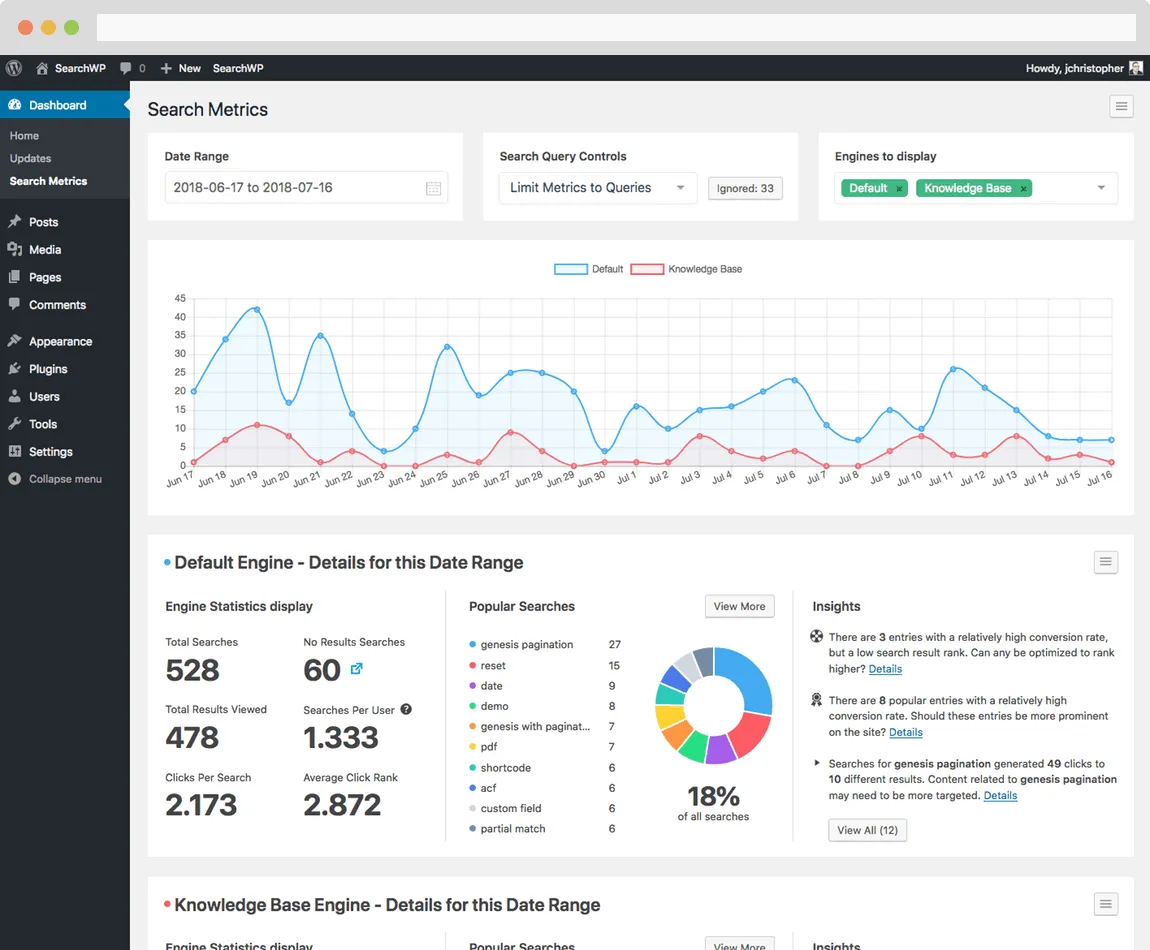


Reviews
Clear filtersThere are no reviews yet.