


 Recently Updated Well Documented

Offline Credit Card Processing for WooCommerce
Process credit card payments offline securely.
This payment gateway for WooCommerce allows your customers to enter their credit card information on your site and let you process the data manually (offline) using your payment terminal. To make this process secure, only the first and the last four digits are saved to the database while the eight middle digits and the security code are sent to a dedicated email address so that the complete credit card number is never stored on a single computer.
The card type is detected automatically and the credit card data is validated against different rules to prevent expired cards or invalid card numbers. This makes your life easier – and your customers life too.
To securely transmit your customers credit card information to your site you need to have a SSL certificate installed. This plugin will only work in test mode if SSL is not enabled.
Features
- automatic card type detection
- validate card number checksum
- validate card expiry date
- works with all 16 digit credit and debit cards
- select from built in card logos or provide your own
- never stores complete card number on a single machine
- customize subject and content of generated email
- ensures you didn’t forget enabling SSL
- compatible with WooCommerce 2.0.x to 5.0.x
Documentation
[menu name=”Offline CC NAV”]
Known Card Types
- American Express
- Australian BankCard
- Carte Blanche
- Diners Club
- Discover/Novus
- JCB
- MasterCard
- Visa
Requirements
- SSL certificate
- Credit card processing terminal


PCI Compliance
- This plugin is compliant to your country’s local rules, regulations and requirements and takes care that if your website got compromised, an intruder would not be able to gain access to sensitive credit card details.
- The first and last four digits are stored in the database, while the middle digits are sent via email to ensure that you never store the full credit card number on any computer.
- You can remove all credit card information from WooCommerce after the payment has been processed.
License
Each installation of the plugin will require a licence key in order for you to receive updates and support.
Screenshots
-
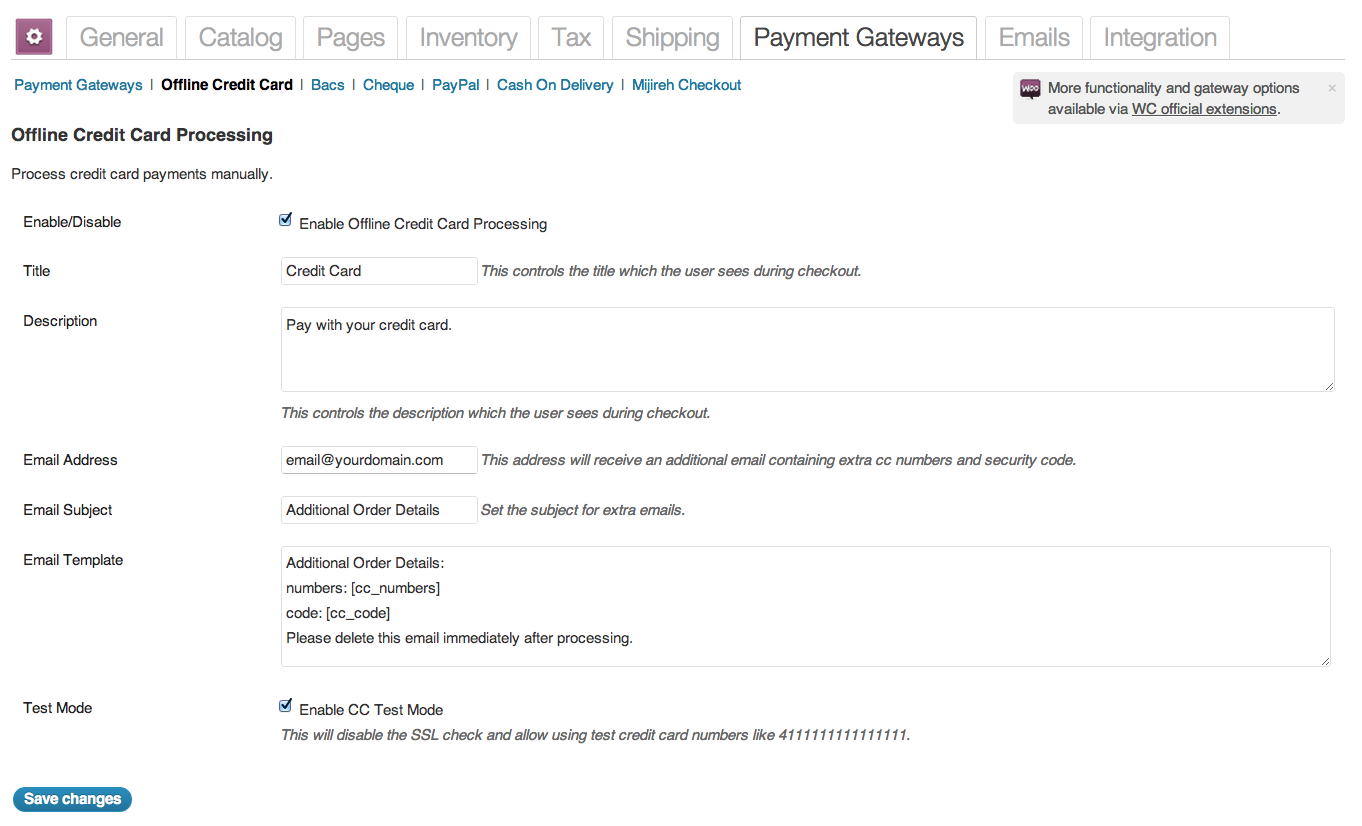
Plugin standard options -
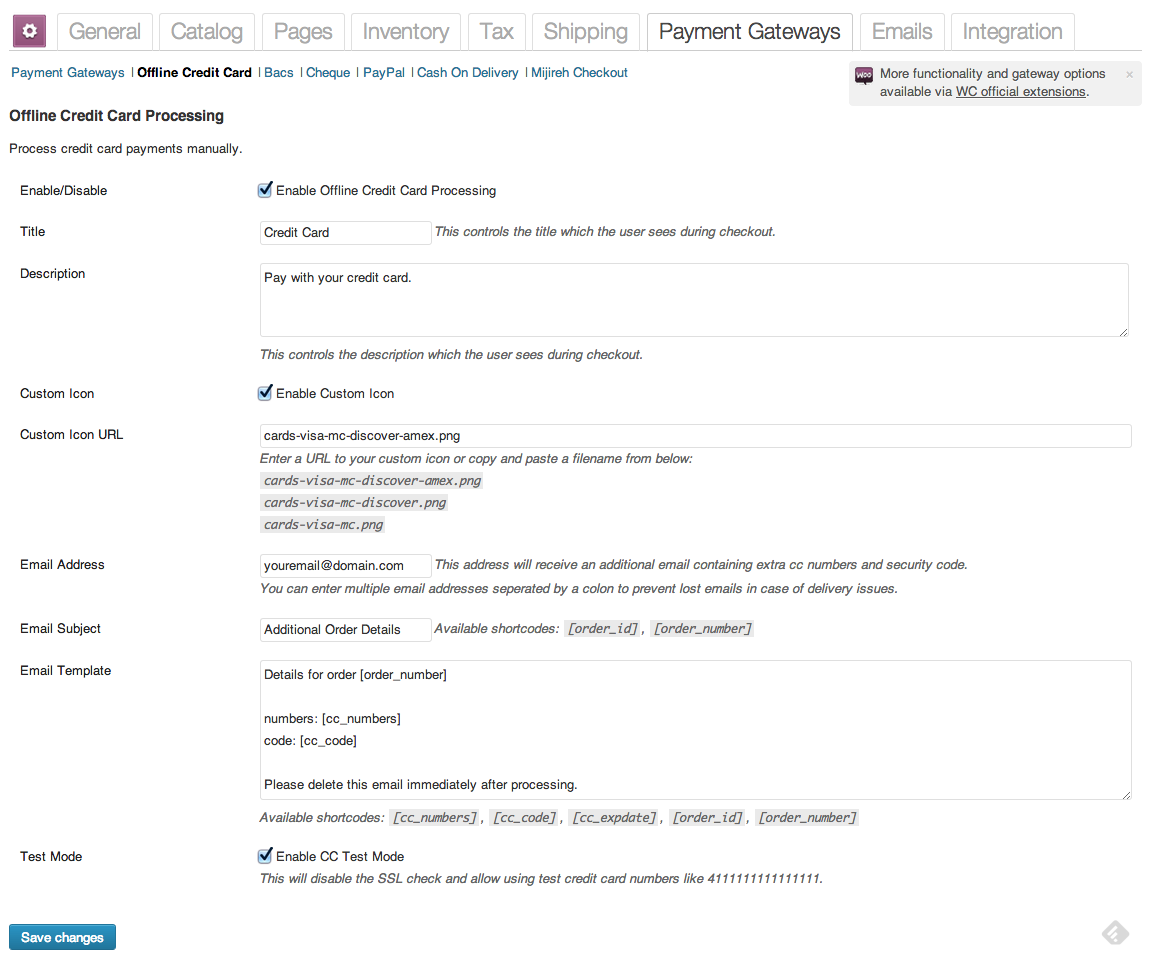
Plugin options with custom icon enabled -
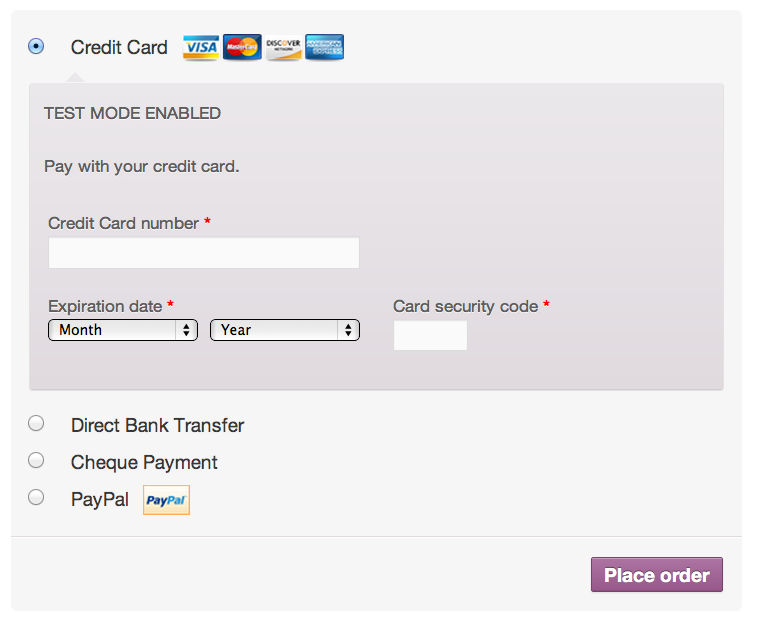
Checkout page
F.A.Q.
What if I don’t receive the extra email? Will the data be lost?
Yes, which is why it is important that you properly test the plugin – to confirm that your email provider doesn’t filter these emails. Almost all reported issues of emails not being received have been solved by using a different email address with a different provider. Gmail has been reported to work very well, but to ensure that there won’t be any data loss it is recommended to set up the backup storage as described below.
I receive some extra emails, but others are missing! What can I do?
Depending on your hosting provider you might have to send emails via SMTP instead of PHP mail(). This can be done by installing the free WP Mail SMTP plugin and setting it up using an email account with the same provider.
If you are a rackspace customer it is highly recommended to install WP Mail SMTP and configure it using one of your email accounts hosted with rackspace. If you’re already using a dedicated email delivery provider like SendGrid, you can use their SMTP server as well.
I still don’t receive these emails. How can I be sure if they were actually sent?
For debugging purposes you can install the WP Mail Log plugin which will log each email that was sent from your WordPress site to the database. While this is great for debugging, it makes the whole process of sending the middle digits via email meaningless, as your database will contain the full card number as well as the security code. That’s why:
Warning: Don’t use WP Mail Log except for checking your own test orders. You might get sued – or get kicked out of rackspace. Seriously.
What about some kind of backup storage that doesn’t involve email?
Excellent question. The plugin does support a solution to prevent data loss when emails are lost since version 1.4.1. This works by sending the data to an included php script which should be uploaded to a different server to prevent hackers from accessing the data.
This simple script stores the data in a simple CSV file, but it doesn’t provide any means to access the stored data though that script. Think of it as a write only storage.
How do I set up this backup storage?
Just upload the storage.php file – which can be found in the scripts folder within the plugin – to a secret location on a different server like www.example.com/my-secret-folder/storage.php. If you want the CSV file to be stored in the same folder, make sure it is writeable by the server and copy the .htaccess file as well, which will prevent direct access via HTTP.
It is recommended however that you move the CSV file out of your public web folder. You can customize the CSV file name and location at the top of the storage.php script.
Next call the full URL to the script – it should create the CSV file in the desired location or show an error if the folder is not writeable. Once you confirmed that the CSV file was created successfully, copy and paste the full URL to the script into the Backup Storage URL field in the plugin settings and you are done.
Where can I find test numbers or different card logos?
If you have enabled the test mode, you can use official test numbers which exist specifically for that purpose. You can find a comprehensive list here – and some easy to use credit card logos as well.
Can I change the text label above the actual input fields on the checkout page?
You could edit the code of the plugin to change that text, but your changes would be overwritten when updating the plugin which is why using a plugin would be the better option. There are plugins that allow you to replace text strings like this. We haven’t tested those plugins personally, but according to user reports, they should do the job:
This is the author of the “Say What” plugin, explaining how to use it: Adding a string replacement and How to change text in a WordPress plugin
What kind of SSL certificate should I use?
It shouldn’t matter which kind of SSL certificate you use – as long as it enables you to tick the “Force secure checkout” checkbox in WooCommerce > Settings > Checkout.
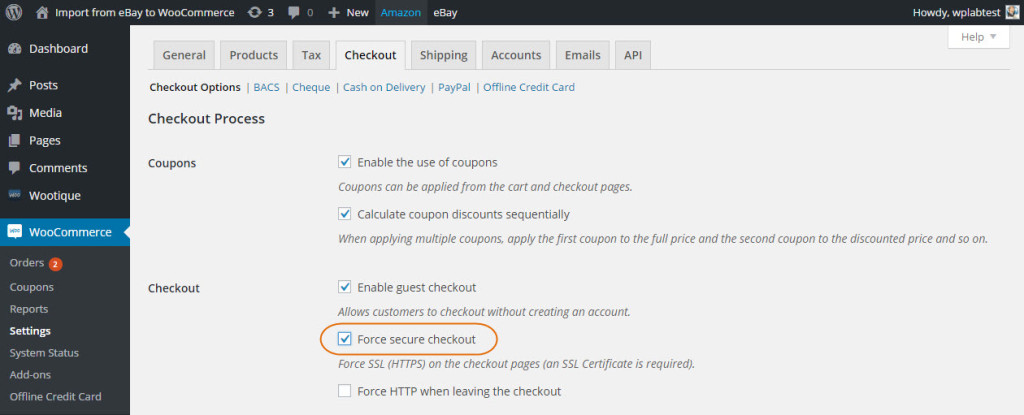
When that checkbox is ticked, the plugin will assume that you have a working SSL.
Is there an option to add the “Cardholder Name” on the Checkout field?
Yes, you can enable it by ticking the checkbox next to “Ask for cardholder name” in the plugin settings.

I suddenly stopped receiving emails what should I do?
We recommend you install the Post SMTP Mailer plugin. This plugin provides all the features you need in a single plugin: not only does it allow using alternative email sending methods like SMTP, Sendgrid or the Gmail API, it also logs sent emails and these logs do include detailed information (session transcript) about any problems.
In other words, this will help you diagnose what is happening with your emails and why they are not being delivered.
So what you need to do is to set up the Post SMTP Mailer plugin to use the Gmail API to send emails, which is done by starting the Setup Wizard and following the instructions given.
There even is a detailed video tutorial on how to set up the Gmail API method – which we recommend, unless you have an account with SendGrid or Mandrill as well.
Once you have set up Post SMTP Mailer to send emails via Gmail, send a test mail and then place another test order. Then check the email log and if there are no errors you should receive the email for sure.
Note: We used to recommend the Postman plugin in the past, but Postman is no longer maintained and has been removed from the official plugin repository once a security leak was discovered. The Post SMTP Mailer is a direct fork of Postman, so it shares all the functionality but is well maintained and up to date.
Can I add some text to the order confirmation emails that is only shown only when this payment gateway is used?
To add text to the order confirmation email that is sent to the customer, just create the file woocommerce/emails/customer-completed-order.php in your theme folder by copying it from the templates folder within the WooCommerce plugin – and add the following lines at the desired location:
|
1
2
3
|
<?php if ($order->payment_method == 'offline_cc') : ?>... your text here ... <?php endif; ?> |
We use the WooCommerce Print Invoice & Delivery Note plugin. Is there any way to include card details when printing invoices?
Yes, there is. The following snippet was submitted by a user (Thanks, Leon!) and is supposed to go in your theme’s functions.php.
|
1
2
3
4
5
6
7
8
9
10
11
12
13
14
|
function example_custom_order_fields( $fields, $order ) { $customFields = array(); $customFields['x1'] = array( 'label' => 'Bank No.', 'value' => get_post_meta( $order->id, 'Bank Identification Number', true ) ); $customFields['x2'] = array( 'label' => 'CC', 'value' => get_post_meta( $order->id, 'Credit Card', true ) ); $customFields['x3'] = array( 'label' => 'CC Holder', 'value' => get_post_meta( $order->id, 'Credit Card Holder', true ) ); $customFields['x4'] = array( 'label' => 'CC No.', 'value' => get_post_meta( $order->id, 'Credit Card Numbers Left', true ) ." _ _ _ _ _ _ _ _ ". get_post_meta( $order->id, 'Credit Card Numbers Right', true ) ); $customFields['x6'] = array( 'label' => 'CC Valid', 'value' => get_post_meta( $order->id, 'Credit Card Valid Until', true ) ); $customFields['x7'] = array( 'label' => 'DebitC', 'value' => get_post_meta( $order->id, 'Debit Card', true ) ); $customFields['x8'] = array( 'label' => 'Email Sent', 'value' => get_post_meta( $order->id, 'Extra Email Sent', true ) ); return array_merge( $fields, $customFields );}add_filter( 'wcdn_order_info_fields', 'example_custom_order_fields', 10, 2 ); |
Latest Release

Fluent Forms – The Fastest WordPress Form Builder
Original price was: US$299.00.US$4.99Current price is: US$4.99. for 1 year
WizeStore – Multipurpose WooCommerce Shop WordPress
Original price was: US$59.00.US$4.99Current price is: US$4.99. for 1 year
Chelsey – Portfolio Theme for Freelancers and Agencies
Original price was: US$79.00.US$4.99Current price is: US$4.99. for 1 year
Reviews
Clear filtersThere are no reviews yet.