Fluent Forms - The Fastest WordPress Form Builder
Fluent Forms - The Fastest WordPress Form Builder Original price was: Rs24,518.00.Current price is: Rs410.00. for 1 year
Back to products
Basic Membership
Basic Membership Rs820.00 for 1 month

Stripe Payments – JetFormBuilder Pro Addon

tick Recently UpdatedΒ  tick Well Documented

Stripe Payments

A supplementary software to integrate your forms and Stripe payment system.

Original price was: Rs3,198.00.Current price is: Rs410.00. for 1 year

  • 100% Original ProductΒ and Virus Free.
  • Regular Update.Β 
Payments Method elements keys
15 Items sold in last 24 hours
Last Update Date: December 21, 2023

Description

Stripe Payments

A supplementary software to integrate your forms and Stripe payment system.

booking form with stripe
Stripe Payments – JetFormBuilder Pro Addon
Works with any WordPress theme

Add payments to your form

Stripe Payments is a JetFormBuilder addon that links JetFormBuilder and JetEngine forms to Stripe’s software, allowing you to carry out any payments online via Stripe Gateway.

Enable clients to pay for product orders, food deliveries, all sorts of specialty services. Let them purchase memberships, tickets to various events, and courses. Stripe Payments will also come in handy if you offer booking & rental services.

Addon Functionality:
  • Stripe Gateway
  • AJAX redirect to Checkout
  • Actions before & after payment
form and checkout
Stripe Payments – JetFormBuilder Pro Addon

Unlock All AddonΒ Options

Enable Gateways

Activate the Gateway option to connect the payment system and your form.Β Learn more

Post submit actions

The β€œInsert/Update Post” action is crucial. If you do not configure it, the form will not pass the Gateway and the β€œEdit” button will be unavailable.

Public key

A field where you are supposed to insert the Stripe Publishable key obtained during the API key generation.

Secret key

A field where you are supposed to insert the Stripe Secret key obtained during the API key generation.

Currency code

Use the Stripe-approvedΒ Currency CodesΒ and stick with one to be used for financial operations on your website.
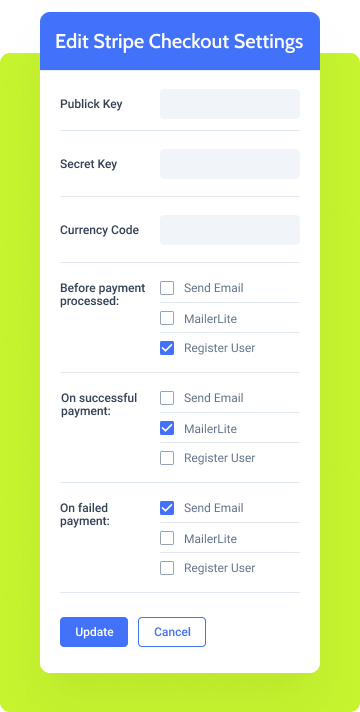
stripe checkout settings
Stripe Payments – JetFormBuilder Pro Addon
Price/Amount field

This form field can be either Calculated or Hidden type. Should be set in digits only.

Available macros list

The %gateway_amount%, %gateway_status%, and %field_name% macros will let you create custom payment success/failed messages.

Payment success message

A message confirming the payment was successful.

Payment failed message

A message indicating the payment error occurred.

orΒ try JetFormBuilder free version

How to ConfigureΒ Stripe Payments

How to set up

To install the addon, go toΒ JetFormBuilder > AddonsΒ and find the β€œStripe Payment Gateway” addon in theΒ All Available AddonsΒ section. Press theΒ β€œInstall Addon” button and, once installed, it will appear onΒ Your Installed Addons.Β Next, clickΒ β€œActivate Addon” to get it ready for further work.
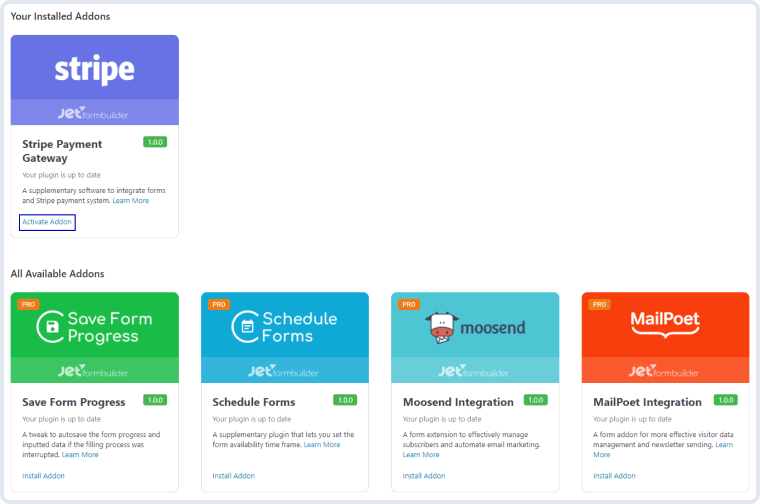
stripe payments addon installation and activation
Stripe Payments – JetFormBuilder Pro Addon

As you can see, all PRO version addons can be easily installed and activated via JetFormBuilder Dashboard.

How to obtain the Stripe API key

Go to theΒ Stripe websiteΒ and create a new account. If you already have a Stripe account, log into it.

account creation form on stripe website
Stripe Payments – JetFormBuilder Pro Addon

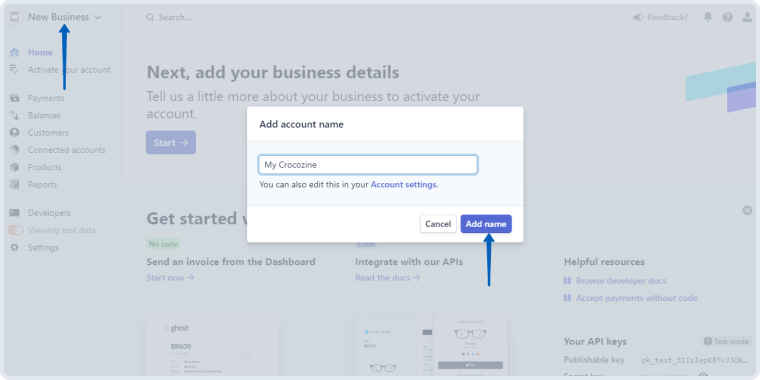
A confirmation letter will be sent to your email address. Proceed to the inbox and click the link in the email to pass the verification. Afterward, you’ll be redirected to Stripe’s dashboard page. Click on theΒ New BusinessΒ bar in the upper left corner of the sidebar, enter the account name and press theΒ β€œAdd name” button.

creating a new business on stripe website
Stripe Payments – JetFormBuilder Pro Addon

Good. Now, you will be able to locate two Stripe API keys – the first isΒ Publishable keyΒ and the second isΒ Secret key.Β Cope them someplace safe because you are going to need them later.

stripe api keys section
Stripe Payments – JetFormBuilder Pro Addon
How to configure the Stripe Gateway


Please check out theΒ Payment Gateways setup tutorialΒ for more details about form creation with the Stripe Gateway.

Navigate to theΒ JetFormBuilder > SettingsΒ tab on the WordPress Dashboard and turn the Enable Gateways toggle on.
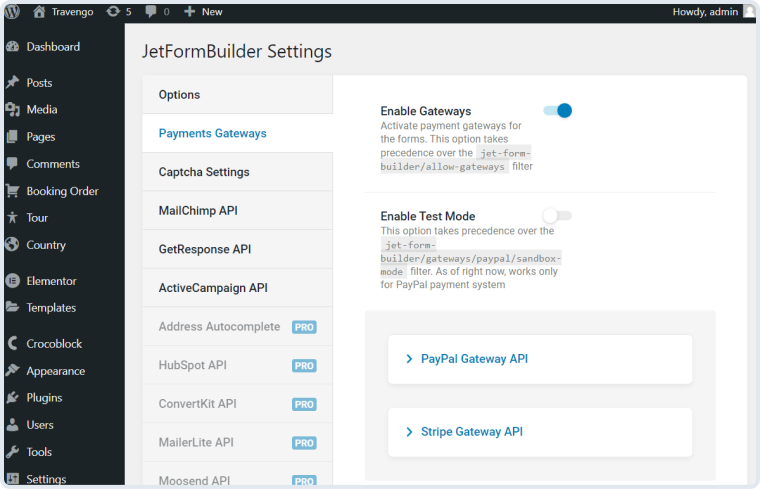
enable gateways in the jetformbuilder settings
Stripe Payments – JetFormBuilder Pro Addon

Unfold theΒ Stripe Gateway APIΒ tab. Here, you can enter theΒ Public KeyΒ andΒ Secret KeyΒ copied from the Stripe website to use them in the JetFormBuilder forms further.
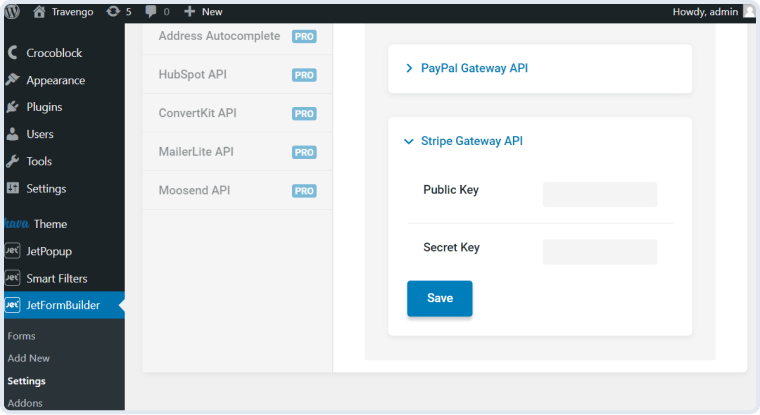
stripe gateway API
Stripe Payments – JetFormBuilder Pro Addon

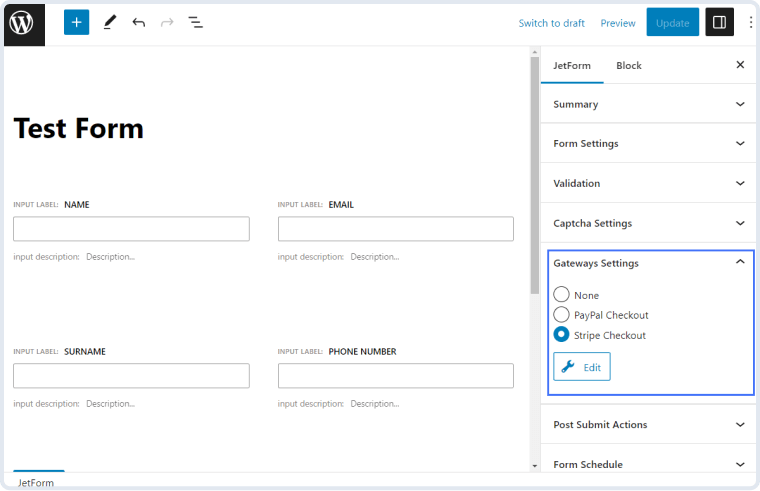
Go toΒ JetForms > FormsΒ and open one of the created forms. In the right-side menu, you will see theΒ Gateways SettingsΒ section. Select the β€œStripe Checkout” option and hit theΒ β€œEdit” button.

stripe checkout in the gateways settings section
Stripe Payments – JetFormBuilder Pro Addon
Stripe Checkout Settings


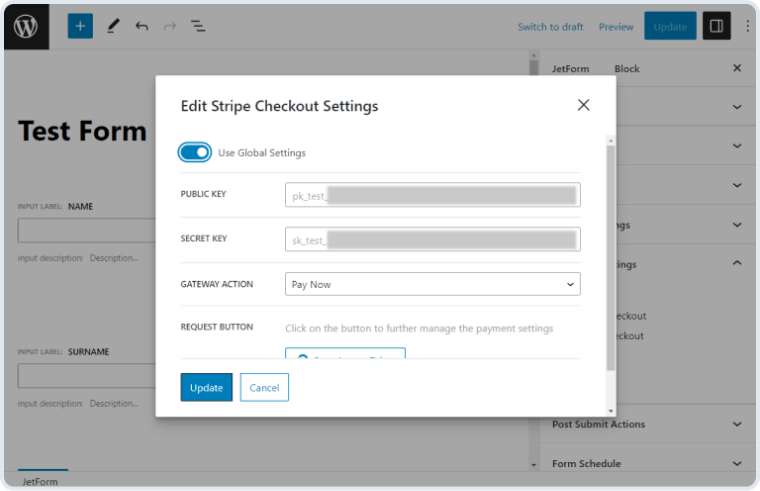
Let’s go over the settings in theΒ Edit Stripe Checkout SettingsΒ window.

stripe checkout settings editing window
Stripe Payments – JetFormBuilder Pro Addon
  • Use Global Settings.Β Toggle it on to pull out theΒ Public KeyΒ andΒ Secret KeyΒ if you have entered this information in theΒ JetFormBuilder > Settings > Payments GatewaysΒ directory or leave it untoggled and enter the keys manually;
  • Public Key.Β Paste theΒ Publishable keyΒ that you obtained from Stripe into this bar;
  • Secret Key.Β This is where you paste theΒ Secret keyΒ generated through the Stripe website;
  • Gateway Action.Β Here, you can choose the payment scenario. Select the β€œPay Now” action to enable further settings.

To further manage the Stripe payment settings, click theΒ β€œSync Access Token” button. Once the Access Token is updated, you can access more gateway settings.
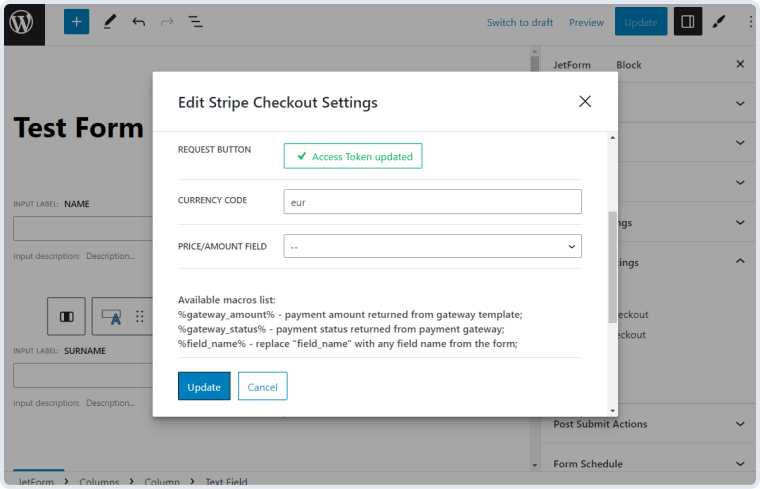
stripe checkout access token updated
Stripe Payments – JetFormBuilder Pro Addon
  • Currency Code.Β Type here a three-letter code that represents the currency used in your form. The full list of worldly currencies can be foundΒ here;
  • Price/amount field.Β You can choose a form field price from the fields list.
  • Available macros list.Β These macros can be used in the Textarea fields below – Payment success messageΒ andΒ Payment failed message – if you want to specify some details for the customer:
  • %gateway_amount% – will provide the payment amount returned from the gateway template;
  • %gateway_status% – will provide the payment status returned from the payment gateway;
  • %field_name% – will provide any necessary details from the form field, the name of which you write instead of the β€œfield_name”;
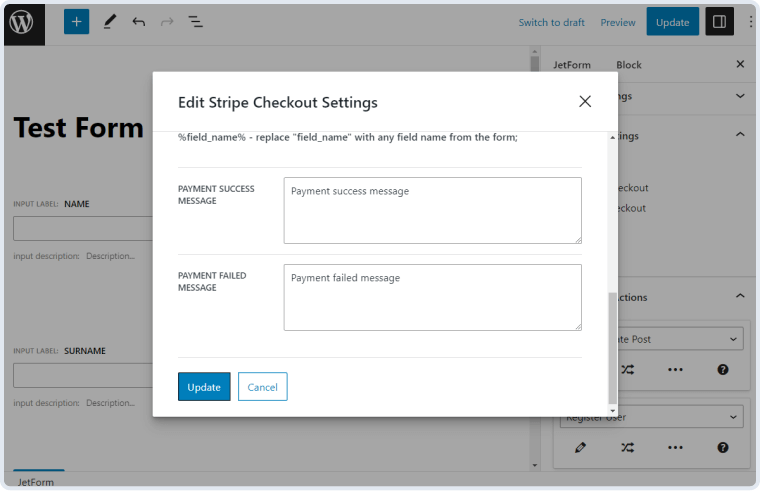
payment success and failed messages customization
Stripe Payments – JetFormBuilder Pro Addon
  • Payment success message.Β This is a message that will be shown to the user after their payment is confirmed to be successful;
  • Payment failed message.Β This message will be shown to the user in case their payment did not come through.

Latest Release

Fluent Forms – The Fastest WordPress Form Builder

Original price was: Rs24,518.00.Current price is: Rs410.00. for 1 year

WizeStore – Multipurpose WooCommerce Shop WordPress

Original price was: Rs4,838.00.Current price is: Rs410.00. for 1 year

Chelsey – Portfolio Theme for Freelancers and Agencies

Original price was: Rs6,478.00.Current price is: Rs410.00. for 1 year

Minimo – Portfolio & Agency WordPress Theme

Original price was: Rs5,248.00.Current price is: Rs410.00. for 1 year

Customer Reviews